
5 min read
A USB flash drive write protection error means the drive refuses to accept new files, delete old ones, or format, even though you can still read everything on it. Windows shows a message that the disk is write protected, and every copy or delete attempt fails. The lock can come from a physical switch, a Windows policy, a registry setting, or a drive that has locked itself to protect failing memory.
This guide explains what is a USB flash drive write protection error and how to remove it. You will check the physical switch first, then the Windows policies and registry, then the disk tools that can clear the read-only flag, and you will learn when the lock means the drive is dying.
Check the Physical Switch
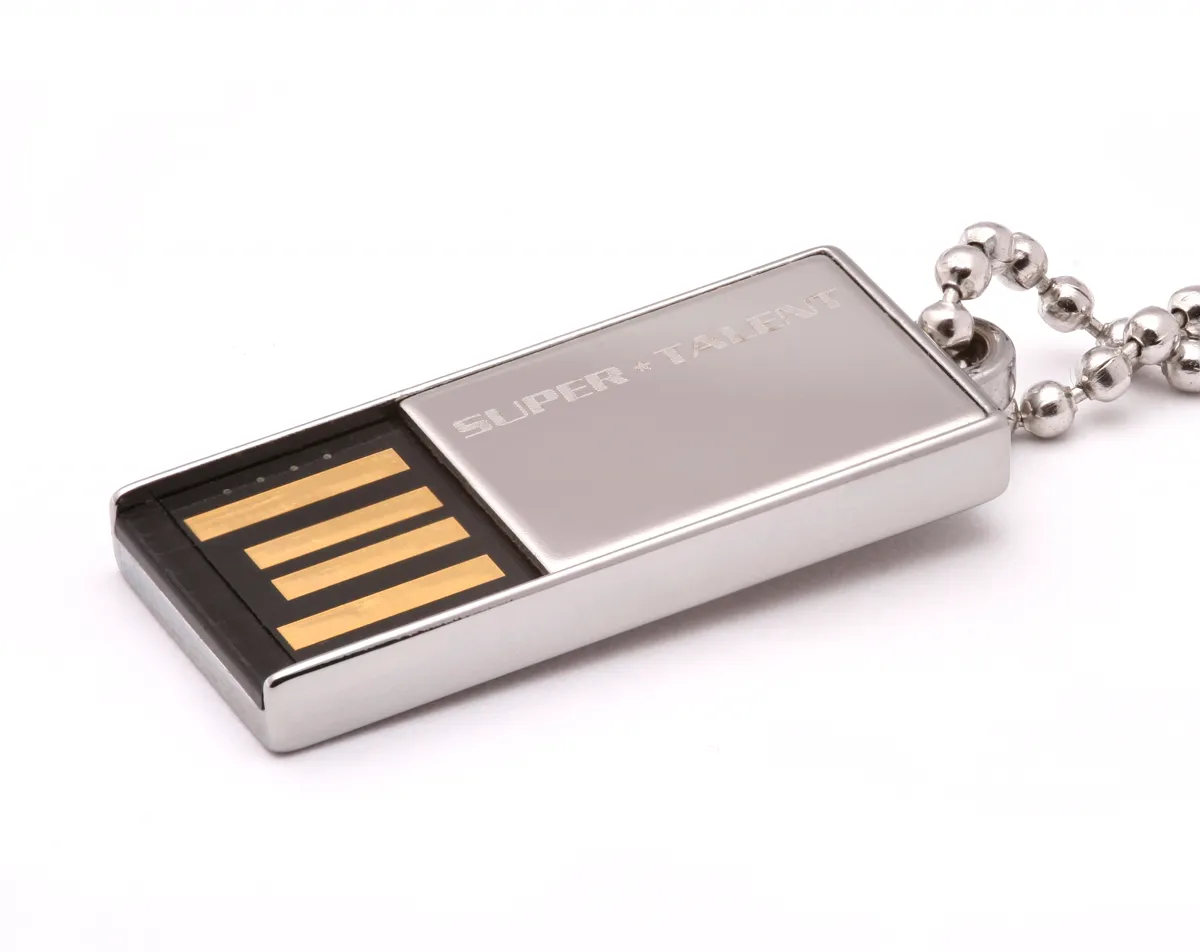
Some flash drives and SD card adapters have a tiny sliding switch on the side that locks the whole drive. If the switch is set to Lock, the drive is read-only no matter what you do in software. Slide the switch to the unlocked position, remove the drive, plug it back in, and try copying a small file again.
The switch can slide on its own inside a tight pocket or a bag, so check it even if you never touched it. If the switch feels loose and slides back to Lock by itself, a small piece of tape over the switch can hold it in place while you copy your files off the drive.
Many modern flash drives have no switch at all, so do not waste time hunting for one. If the drive has a smooth body with no slider, move straight to the software checks. The absence of a switch means the lock comes from Windows, the registry, or the drive firmware.
Check Windows Policies and the Registry
Windows can block writing to removable drives through a policy set by an administrator or a school computer. Open the Local Group Policy Editor, go to Computer Configuration, then Administrative Templates, then System, then Removable Storage Access, and look for the policy that denies write access to removable disks.
The registry holds a similar setting that can lock all USB drives at once. Open the Registry Editor, go to the StorageDevicePolicies key, and look for a WriteProtect value. If the value is 1, change it to 0 and restart.
Back up the registry before you change anything in it. A wrong edit in the registry can cause bigger problems than a locked flash drive. Export the key you plan to change, so you can restore it if the edit does not help.
Clear the Read-Only Flag With DiskPart
DiskPart is a built-in Windows tool that can clear the read-only flag on a drive. Open a command prompt as administrator, type diskpart, then list disk to see all drives. Find your flash drive by its size, select it with select disk followed by its number, and run attributes disk clear readonly to remove the flag.
Be very careful with the disk number, since selecting the wrong disk can change the flag on your main drive. Double-check the size and the drive letter before you select anything. If the flash drive does not appear in the list, try another USB port or another computer to rule out a dead port.
After clearing the flag, try copying a file to the drive again. If the flag comes back on its own after a restart, the drive firmware may be re-locking the drive, which is a sign of a deeper problem. Copy your files off the drive right away if the flag clears even for a short time.
Format the Drive as a Last Resort
If the flag clears but writing still fails, a full format may remove a damaged file system that keeps triggering the lock. Copy every file you need off the drive first, since formatting erases everything.
If Windows refuses to format the drive, try the Disk Management tool. Open Disk Management, find the flash drive, delete its partition, create a new simple volume, and format it. A drive that cannot be formatted even in Disk Management is usually failing at the hardware level.
Some makers offer a low-level format tool for their own drives, and it can succeed where Windows fails. Download the tool only from the official maker site, and follow its instructions exactly. A low-level format takes longer than a normal format and erases the drive completely.
When the Drive Is Failing
Many flash drives lock themselves permanently when their memory cells wear out. This is a safety feature, not a bug: the drive switches to read-only mode so you can still copy your files before the memory dies completely.
Watch for other signs of failure, such as files that vanish, files that turn into gibberish, or a drive that appears and disappears from File Explorer. A drive that shows the wrong capacity, like 0 bytes or a tiny fraction of its label, has a damaged controller and is not worth fixing.
Replace a failing drive instead of fighting it. Flash drives are cheap, and your time is worth more than a drive that keeps locking. Buy a drive from a known brand, keep a second copy of important files in cloud storage or on another drive, and retire any drive that locks itself more than once.
Like this one? The short list below is built from the same shelf, and Portable SSD Versus Flash Drive: Speed and Price Compared is a strong next pick.