
5 min read
A PC that randomly freezes without a blue screen is harder to diagnose than a crash with an error message, because the screen simply stops moving and gives no clue. The mouse stops, the keyboard does nothing, and the only option seems to be holding the power button. The freeze can come from heat, a bad driver, a failing drive, or a memory fault, and each cause leaves different clues.
This guide shows how to fix a PC that randomly freezes without a blue screen. You will learn how to note when the freeze happens, check heat and memory first, test drivers and storage, and narrow the cause with a few free tools before you replace any hardware.
Note When the Freeze Happens
The pattern of the freeze is your best diagnostic clue, so write it down before you change anything. Note whether the freeze happens at startup, after ten minutes of use, only in games, only when you open a certain app, or at totally random times.
Also note whether the sound loops, the fans get loud, or the screen shows a still image or a black screen. A looping sound with a still image often means the graphics driver hung. A freeze with loud fans often means the CPU or graphics card overheated and throttled itself into a stop.
Check the Windows Event Viewer after a freeze and restart. Open Event Viewer, look under Windows Logs and then System, and find errors or critical events from the minutes before the freeze. A disk error, a driver timeout, or a kernel power event just before the freeze points straight at the faulty part.
Check Heat and Airflow
Heat is the most common cause of a freeze with no error message. A CPU or graphics card that gets too hot slows itself down, and if the heat keeps rising, the system can lock up to protect the hardware.
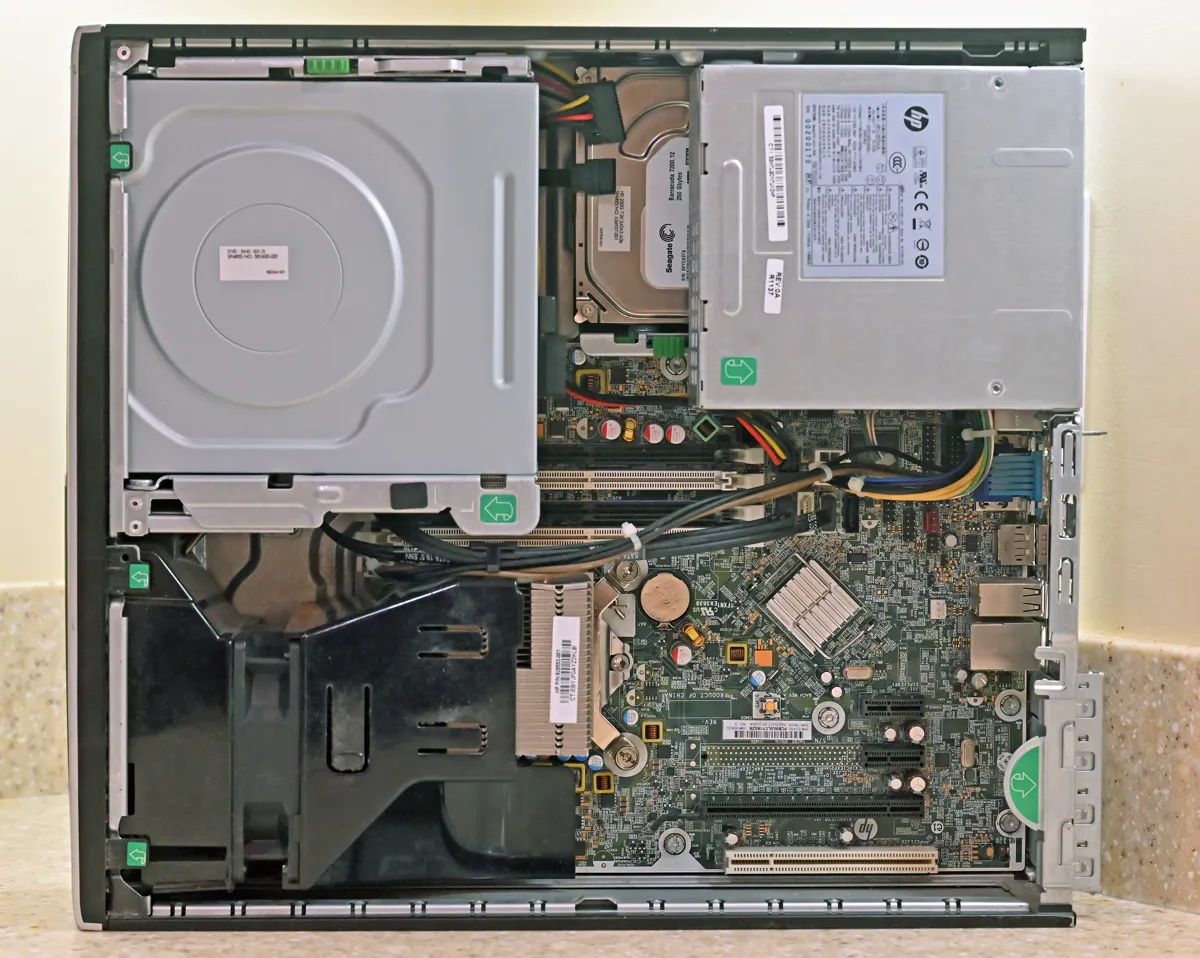
Clean the dust out of the case, the fans, and the heatsinks. Dust blocks airflow and acts like a blanket on hot parts, so a PC that ran fine for a year can start freezing as dust builds up. Use compressed air with the PC off, hold the fans still so they do not spin, and clean the front intake filter as well.
Make sure the fans actually spin and the case has a clear path for air. A dead case fan, a cable blocking the intake, or a PC pushed against a wall can raise temperatures fast. If the freeze stops after cleaning and improving airflow, heat was the cause and no other fix is needed.
Test the Memory
Faulty memory causes random freezes that look completely unpredictable. Windows includes a memory test that you can run without installing anything. Type memory diagnostic in the Start menu, choose Restart now and check for problems, and let the tool run its tests.
If the test finds errors, test each memory stick on its own. Turn the PC off, remove all but one stick, and run the test again, then repeat with the other stick. This step isolates the bad stick so you replace only the faulty one instead of buying a whole new kit.
Also reseat the memory sticks firmly in their slots. A stick that worked loose after a move or a cleaning can cause intermittent freezes that look like a software problem.
Check Drivers and Storage
A bad graphics driver is a frequent cause of freezes during video, games, or even normal desktop use. Download the latest graphics driver from the card maker website, choose the clean install option during setup, and restart. A clean install removes old driver files that can conflict with the new version.
Check the storage drive next, since a failing drive can freeze the whole system while Windows waits for data that never arrives. Open a command prompt as administrator and run a disk check on the system drive, then look at the drive health with a free SMART monitoring tool.
Update the motherboard chipset driver and the BIOS only if the freeze continues after the other steps. Get both from the motherboard maker website, never from a random driver site.
Narrow It Down and Fix It
If the freeze still happens, test with a clean boot. Open the System Configuration tool, disable all non-Microsoft services and startup programs, and restart. If the PC runs fine in a clean boot, turn the services back on in small groups until the freeze returns, and the last group holds the culprit program.
Try a different power outlet and, if you have one, a spare power supply. A weak or failing power supply can freeze a PC when the load rises, and the freeze often comes with no error at all. A spare power supply test takes time, but it is cheaper than replacing the motherboard on a guess.
When you find the faulty part, fix it once and verify the fix with a stress test. Run a heavy game or a stress tool for an hour and confirm that the PC stays stable. If the PC passes the stress test, the freeze is fixed, and you can put the case back together and return to normal use.
Your project does not have to end with this page — Troubleshooting Liquid Cooling Forgotten Password: Recovery Guide shows a good way to carry it forward.
Reference: Blue Screen — Wikipedia