
5 min read
A QR code is a square pattern of black and white modules that stores text, a web address, or other data in a form a camera can read. Point a phone camera at one, and the phone decodes the pattern in a fraction of a second. QR codes appear on menus, tickets, packages, and payment terminals because they move information from paper to phone without typing.
This guide explains what a QR code is and how to scan one safely. You will learn how the code works, why a QR code can be a security risk, and the habits that let you use QR codes without falling for a fake one.
How a QR Code Stores Information
A QR code is a two-dimensional barcode. A traditional barcode stores data in the widths of vertical lines, while a QR code stores data in both directions, which lets a small square hold far more information.
The three large squares in the corners tell the camera how the code is oriented, so the code scans from any angle, even upside down. Smaller alignment patterns help the camera read codes that are curved, tilted, or partly shaded.
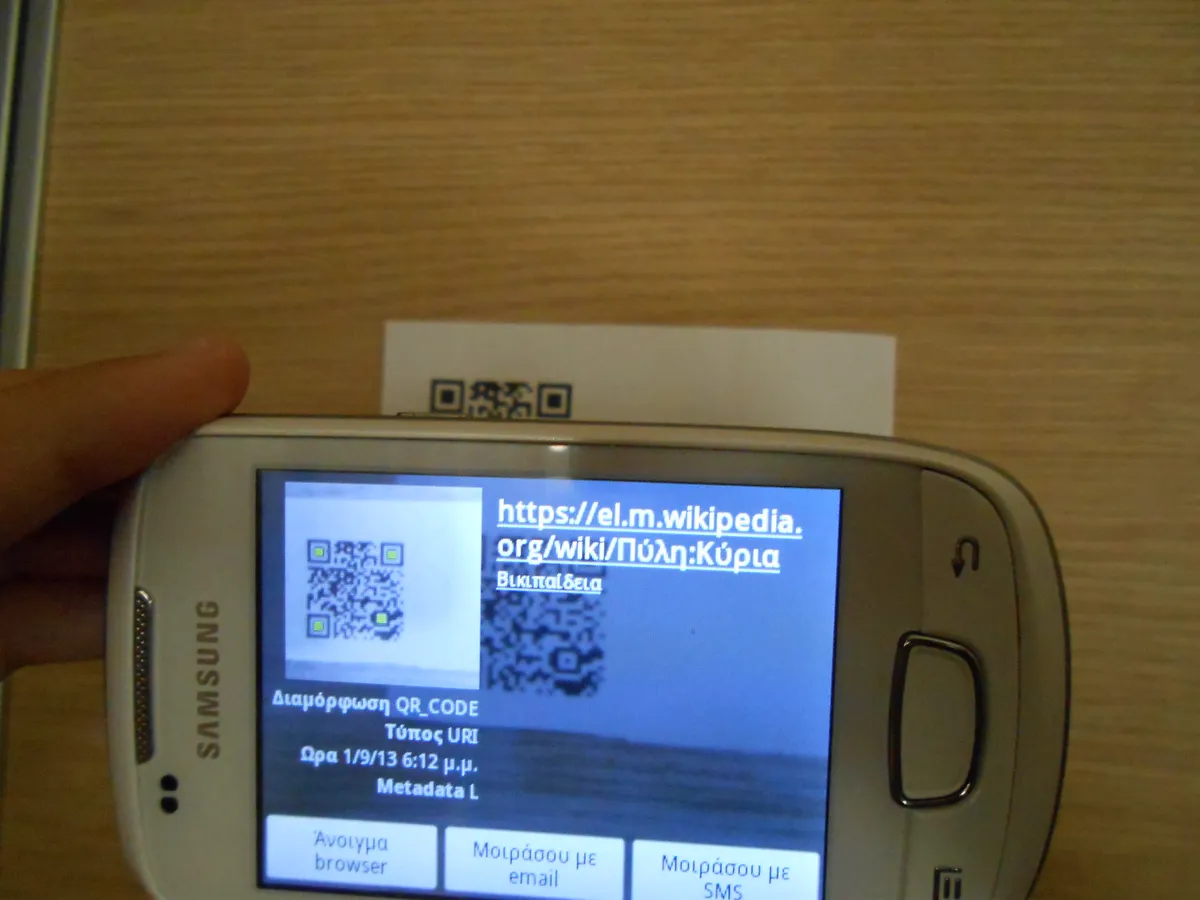
Scanning is decoding, not magic. The camera takes a picture, the phone finds the corner markers, reads the modules as ones and zeros, corrects errors, and turns the result into text or a link. The phone then shows you what it found, and you decide whether to open it. That pause between decoding and opening is where safety lives.
Why a QR Code Can Be Risky
A QR code hides its destination. A printed web address lets you read it before you visit, but a QR code shows nothing until the phone decodes it.
Sticker attacks are the most common trick. An attacker places a small sticker with a malicious QR code over the real code on a parking meter, a restaurant table, or a public poster. The victim scans the top code, reaches a fake payment page, and enters card details into a site the attacker controls.
QR codes can also trigger actions beyond opening a page. Some codes join a Wi-Fi network, add a contact, or start a download. A code that promises a menu but instead downloads an app is a red flag, and a code that asks for a login on a page you did not expect should be treated as hostile until proven otherwise.
Check the Destination Before You Open It
Use the camera preview, not an auto-opening scanner. Your phone camera or a trusted scanner app should show the decoded address before opening it. Read the address carefully: check the domain spelling, look for lookalike letters, and confirm that the site matches what the code claims to be.
Be suspicious of shortened links. A QR code that decodes to a link shortener hides the final destination, which is exactly what an attacker wants. If the preview shows a shortener, do not open it unless you trust the source, because you cannot judge a destination you cannot see.
Never enter a password, card number, or verification code on a page you reached through a QR code unless you are certain of the destination. A legitimate restaurant menu never needs your login. A legitimate parking meter never needs your email password.
Scan Safely in Restaurants, Parking, and Payments
In a restaurant, scan the code printed on the menu or the table stand, not a loose sticker stuck on top. If the code looks added afterward, is crooked, or covers another code, ask the staff for the menu instead. A few seconds of doubt beats a stolen card number.
At a parking meter or a ticket machine, use the official app or type the payment address yourself when the code looks suspicious. Check the meter for a sticker that covers the original code, and compare the domain on the payment page with the name on the meter. Mismatched names are a strong warning.
For payments, prefer the payment app itself over a QR code that leads to a payment page. Open your bank or wallet app, scan from inside the app, and let the app verify the recipient.
Make Your Own QR Codes Safely
Generate QR codes with a reputable tool, and avoid generators that insert tracking or advertising links. A QR code for your Wi-Fi password, your contact card, or your website should encode exactly what you typed, and you can verify it by scanning the result with your phone before you print it.
Test every code you print. Scan it with two different phones, confirm the destination, and check that the code still scans after printing at the size you plan to use. A code printed too small, on glossy paper, or in low contrast may fail, and a code that fails in front of customers is worse than no code at all.
Keep sensitive data out of printed codes. Do not print a QR code that encodes a password, a private link, or an access token, since anyone with a camera can copy it. For private sharing, send the link directly to the person who needs it, and use a QR code only for information you are happy to make public.
There is more where this came from — the guides below continue the topic, starting with Cloudflare Full: A Complete Setup Guide.
Related Articles:
- Cloudflare Full: A Complete Setup Guide
- Steam Account Hacked? Recovery Guide 2026
- Cloudflare: Definition, How It Works & Key Benefits
What is your take?
Share your experience or questions in the comments — especially if you have used this tech yourself.
Found this useful? Share it with a friend who would want to know.