
5 min read
A hard drive clicking sound is a warning that should never be ignored. Inside a mechanical hard drive, a read and write head floats above spinning platters, and a regular clicking or ticking means that head cannot find the data it is looking for. The drive may still work for a while, but the sound means failure is likely close.
This guide explains what a hard drive clicking sound is and what to do about it. You will learn which clicks are harmless, which ones signal a dying drive, and the exact steps that protect your data instead of destroying it.
What Makes the Clicking Sound
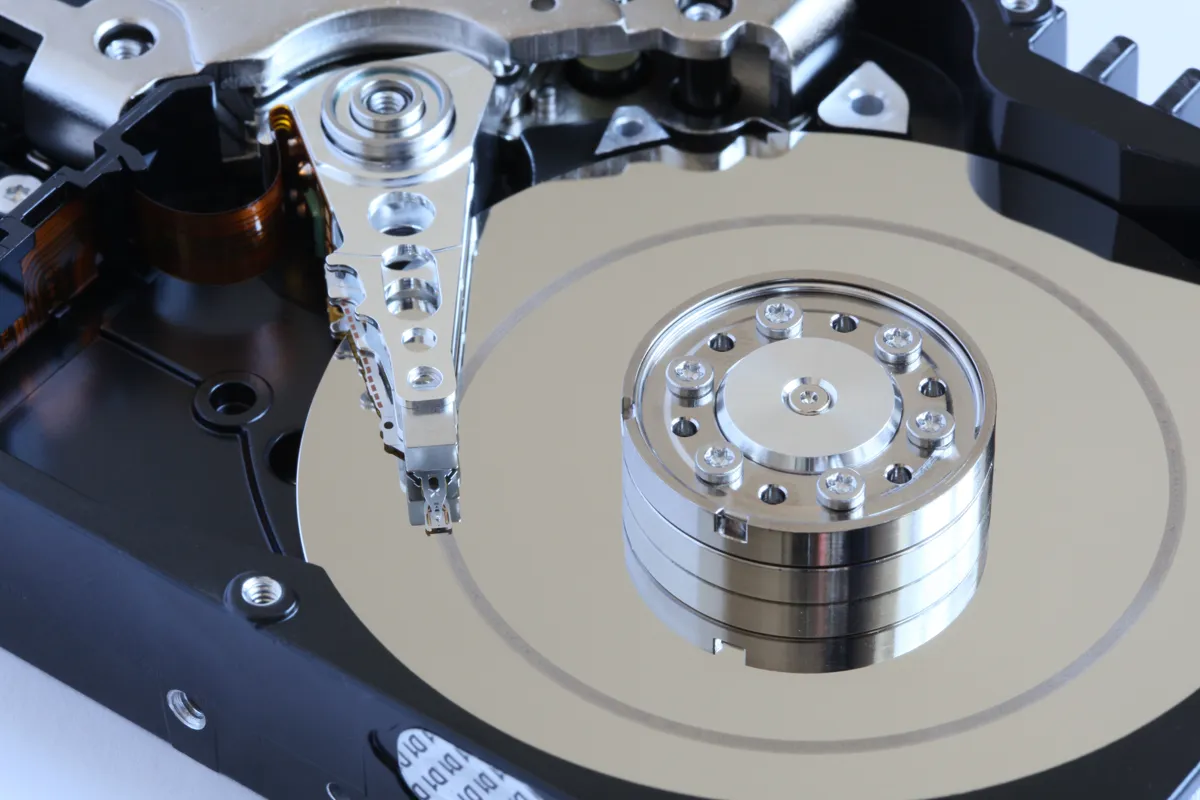
A hard drive stores data on magnetic platters that spin at thousands of revolutions per minute. A tiny arm moves the read and write head across the platter surface to find data. When the head cannot read its target, the drive parks the arm and tries again, and that retry motion makes the click. A few retries are normal, but repeated retries are not. A few retries are normal, but repeated retries are not.
The sound is often called the click of death, and the name is accurate. The head may be failing, the platter surface may be damaged, or the drive motor may be too weak to spin the platters to full speed.
Solid state drives have no moving parts and cannot click. If your computer has only an SSD and you hear clicking, the sound comes from something else: a fan, a speaker, or a nearby external drive. Identifying the source matters, because a clicking fan is an annoyance, while a clicking hard drive is an emergency.
Harmless Clicks Versus Warning Clicks
A single soft click when the drive spins up or parks is normal. Drives click quietly when they start, when they wake from sleep, and when they park the heads before powering down. These clicks are occasional, soft, and tied to a clear event such as starting the computer or opening a file after a long idle period.
Warning clicks are rhythmic, loud, and repeated. A steady tick tick tick every second, a click followed by a spin-down whine, or a grinding click that repeats for minutes all signal trouble.
Listen with the case open or the external drive close to your ear, but do not open the drive itself. A hard drive is sealed against dust, and opening it outside a clean room ruins the platters. The listening test only needs to confirm which device clicks, and it takes seconds.
Stop Using the Drive and Back Up First
Stop writing to the clicking drive immediately. Every write, every scan, and every boot from a failing drive risks further damage. Do not run a full antivirus scan, a defragmentation, or a repair tool on it, because those tools read and write heavily across the whole surface and can finish what the failure started.
Copy the most important files first, not the whole drive. Start with documents, photos, and work you cannot recreate, and copy them to a different drive. Work in small batches, and skip any file that stalls, since a stuck file can hang the copy and stress the drive. A partial backup of the most valuable files beats a failed attempt at a complete one. A partial backup of the most valuable files beats a failed attempt at a complete one.
If the drive still mounts, use a disk imaging tool to make a sector-level copy onto a healthy drive, then recover files from the image. Imaging reads the drive once, in order, and lets you work on the copy without touching the failing original again. This is the safest method, and it is the method professionals use first.
What Not to Do With a Clicking Drive
Do not freeze the drive. The old advice to put a failing drive in a freezer comes from a time when drives had different faults, and it is dangerous today. Condensation forms inside the drive when it warms up, and water on the platters destroys data far faster than the original fault.
Do not tap, drop, or shake the drive. A sharp knock can free a stuck head for a moment, but it can also scratch the platter surface, which destroys the data under the scratch permanently. A drive that needs a knock to work is a drive that needs professional recovery, not a drive that needs a knock.
Do not run repeated repair utilities. A surface scan that marks bad sectors writes to the drive, and a filesystem repair that rewrites the directory can make files unrecoverable. One read-only check is enough to confirm the fault.
Recovery Options and the Next Drive
If the data is not backed up and the drive will not copy, consider a professional recovery service. Recovery labs open drives in clean rooms, replace failed heads, and read platters with specialized equipment.
Ask for a diagnosis before you commit. Reputable labs examine the drive, explain the fault, and quote a price before they start recovery.
Replace the clicking drive with a solid state drive for the system and a new hard drive for bulk storage if you need capacity. Keep two copies of important files in the future, with one copy offsite or in the cloud.
Ready for the next step? Start with Repair USB Flash Drive Bootloop: A Comprehensive Guide, then browse the related guides underneath.
Reference: Do About It — Wikipedia
Related Articles:
- Repair USB Flash Drive Bootloop: A Comprehensive Guide
- External Hard Drive Overheating: Complete Fix & Prevention Guide
- How to Repair Custom PC Build Data Loss: Best Recovery Practices
What is your take?
Share your experience or questions in the comments — especially if you have used this tech yourself.
Found this useful? Share it with a friend who would want to know.