
5 min read
Firmware is the permanent software that lives inside a device and tells its hardware how to behave. It runs in your router, your printer, your mouse, your SSD, and even your battery. When the maker releases a firmware update, it replaces that built-in software with a corrected version, and bugs that no app update could reach quietly disappear.
This guide explains what a firmware update is and why it fixes bugs. You will learn how firmware differs from drivers and apps, what kinds of faults it can fix, and how to apply updates safely without bricking a device.
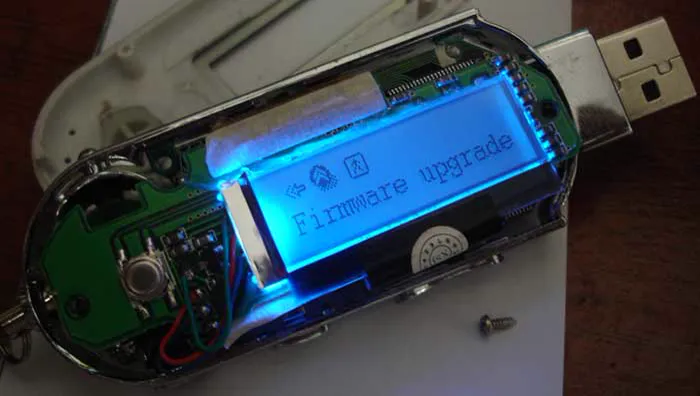
What Firmware Is and Where It Lives
Firmware is low-level software stored in non-volatile memory inside a device. It runs the moment the device gets power, before any operating system or app loads.
Firmware sits between hardware and software. The hardware provides the physical parts, the operating system provides the programs, and the firmware translates between them. When the firmware has a bug, the device misbehaves in ways that look like hardware failure: dropped connections, wrong readings, or features that stop working for no visible reason. When the firmware has a bug, the device misbehaves in ways that look like hardware failure, with dropped connections, wrong readings, or features that stop working for no visible reason.
Every device with a chip has firmware, and most devices never show it. You interact with firmware only when you update it, reset the device, or read the version number in a settings page.
Firmware, Drivers, and Apps: Three Different Layers
An app is the program you see and use, such as a browser or a game. A driver is the translator that lets the operating system talk to a device, such as a printer driver. Firmware is the software inside the device itself. These three layers form a chain, and a fault in any layer can break the whole chain.
Updating the app fixes app bugs, and updating the driver fixes translation bugs, but neither can fix a bug inside the device. If a printer misfeeds paper because its firmware miscounts the paper sensor, no driver update will help, because the driver never sees the sensor. Only a firmware update can correct the device behavior.
This layering explains a common troubleshooting pattern. When a device misbehaves on every computer, the fault is likely firmware or hardware, because the driver and app differ between computers. When a device misbehaves on one computer only, the fault is likely the driver or app on that machine.
The Bugs a Firmware Update Can Fix
Firmware updates fix connection bugs. A router that drops Wi-Fi under load, a Bluetooth earbud that disconnects, or a monitor that blanks at a certain refresh rate often improves with a firmware update, because the update corrects the timing, power management, or handshake logic inside the device.
Firmware updates fix security holes. A camera, router, or smart plug with a firmware flaw can be attacked over the network, and the maker patches that flaw with a firmware update. These security updates are the most important kind, because no antivirus program on your computer can patch a flaw inside a separate device.
Firmware updates also add features and compatibility. An SSD firmware update can improve speed and lifespan, a camera firmware update can add a video mode, and a motherboard firmware update can add support for a new processor.
How to Apply a Firmware Update Safely
Read the update notes before you start. The notes say which models the update covers, which bugs it fixes, and whether the update resets settings. Applying an update meant for a different model can damage a device, so confirm the exact model number on the label, not just the product name, before you download anything.
Use the maker official tool or the device own update feature. Download firmware only from the maker website or through the device app, never from a forum link or a third-party download site.
Keep the device powered and undisturbed during the update. Do not unplug it, do not turn it off, and do not close the update app until the device confirms the update is finished. Most firmware failures come from interrupted updates, not from bad update files, and a device that loses power mid-update can be left unable to start.
When to Update and When to Leave Firmware Alone
Update firmware when the notes describe a bug you have, a security fix, or a feature you need. An update that fixes your exact problem is worth the small risk, and a security update is worth it even if you noticed nothing wrong. Update on a calm day, with time to test afterward, rather than minutes before a deadline.
Leave firmware alone when the device works well and the update adds nothing you need. The saying if it is not broken, do not fix it applies to firmware, because every update carries a small risk of interruption. A router that runs perfectly does not need an update that adds a feature you will never use.
After an update, test the device before you rely on it. Print a test page, run a speed test, or check the feature the update promised. If something breaks, check whether the update reset your settings, and restore them from your notes.
There is plenty more to try. The list below leads off with Driver Update Rituals That Prevent Headaches — a good place to continue.
Related Articles:
- Driver Update Rituals That Prevent Headaches
- USB Not Recognized: Proven Ways to Fix USB Detection Issues
- Troubleshooting UPS Battery Backup BSOD: Easy Fixes
What is your take?
Share your experience or questions in the comments — especially if you have used this tech yourself.
Found this useful? Share it with a friend who would want to know.