
5 min read
A USB drive that Windows cannot format is stuck in a frustrating loop. The format dialog fails, the drive may show the wrong size, and the files on it may be unreachable. The cause is usually write protection, a corrupted partition, or a failing drive, and each one has a different fix.
This guide shows how to fix a USB drive that Windows cannot format. You will work from the safe checks to the stronger tools, and you will learn how to tell a drive that can be saved from one that should be replaced.
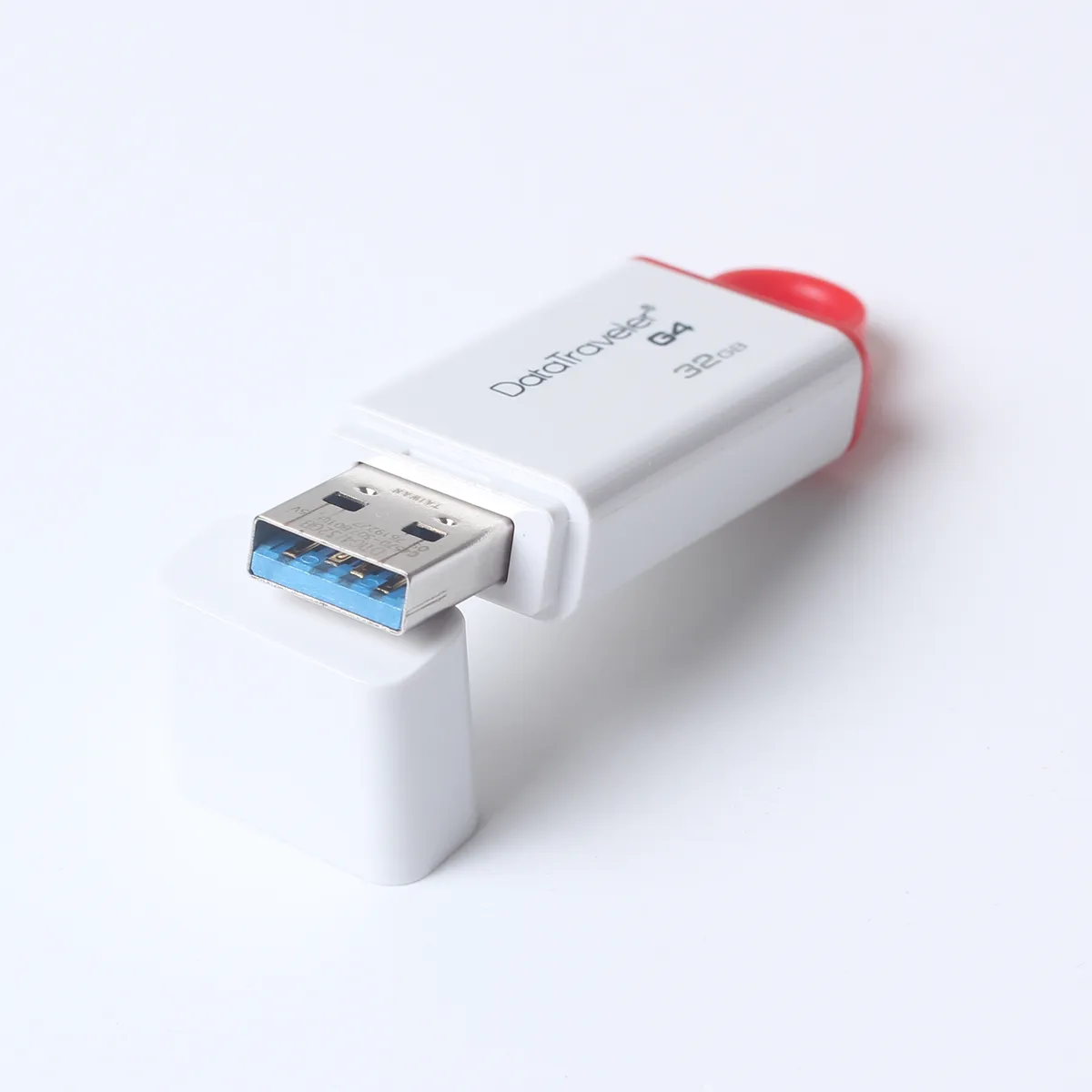
Why Windows Cannot Format the Drive
Windows fails a format when it cannot write to the drive. A physical write-protect switch, a software write-protect flag, a corrupted partition table, or a dying flash chip can each block writing. The format dialog reports the same generic failure for all of them, so the message alone does not tell you which cause you face.
Write protection is the simplest cause. Many USB drives and SD adapters have a tiny lock switch, and a drive with that switch on will read files but refuse every write, including a format. Software can also set a read-only flag in the registry or on the drive itself, which behaves the same way.
Corruption is the second cause. If the partition table is damaged, Windows may see the drive as raw, unallocated, or with the wrong size, and a normal format cannot proceed. A failing drive is the third cause: when flash cells wear out, the controller may lock the drive to read-only mode to protect the data that is still there.
Check the Switch, the Lock, and the Port
Look for a physical lock switch on the drive or on the SD adapter. Slide it to the unlocked position and try again. The switch is small and easy to bump, and it is the cause of many cannot-format errors, especially on SD cards in USB adapters.
Try a different USB port and a different computer. A failing port, a USB hub with too little power, or a driver problem on one computer can block a format that works fine elsewhere. Plug the drive directly into a rear port on a desktop, or into the other side of a laptop, and test again before you blame the drive.
Check whether the drive is actually read-only. Try creating a small text file on the drive. If Windows refuses, the drive is locked, and the fix is to clear the lock. If the file saves but the format fails, the problem is in the partition or the filesystem, and the disk tools below are the right next step.
Clear Read-Only With DiskPart
Open DiskPart, the built-in Windows disk tool, with administrator rights. Type list disk to see all drives, then select disk with the number of your USB drive. Check the number twice against the drive size, since selecting the wrong disk can erase the wrong drive. This is the step where care matters most.
Type attributes disk clear readonly to remove the read-only flag, then type clean to remove all partitions from the drive. The clean command erases the partition table, which wipes the drive completely, so confirm the disk number once more before you run it.
Create a new partition and format it. In Disk Management, right-click the unallocated space, create a new simple volume, and format it as FAT32 for small drives or exFAT for large ones. If DiskPart clean fails with an input-output error, the drive is likely failing, and no software command will save it.
Fix the Partition and Filesystem
Use Disk Management for a gentler repair before DiskPart. Open Disk Management, find the USB drive, and look at its partitions.
Try a full format rather than a quick format. A quick format only writes a new filesystem, while a full format also checks the drive surface for bad sectors.
Match the filesystem to the use. FAT32 works everywhere but cannot hold files larger than 4 gigabytes. exFAT works on Windows and Mac and handles large files, which makes it the best choice for most USB drives. NTFS works well on Windows only.
When the Drive Is Failing for Good
A drive that fails DiskPart clean, shows the wrong size, or disconnects and reconnects on its own is failing hardware. Flash memory wears out after many write cycles, and a worn drive protects itself by locking to read-only mode or by failing writes.
Recover the data before you discard the drive. If the drive still reads, copy the files to another drive before you run any more repair tools. A failing drive can stop reading without warning, and a repair attempt that writes to the drive can destroy the last readable copy of a file. Copy first, repair second, and never the other way around. Copy first, repair second, and never the other way around.
Replace the drive when formatting fails on two computers, when DiskPart reports an input-output error, or when the drive shows far less capacity than its label. USB drives are inexpensive, and a drive that cannot be trusted with a format cannot be trusted with your files.
That is the short version. For the longer one, work through the usb-flash-drive guides below.
Related Articles:
- Bootable USB Drives for OS Recovery
- Portable SSD Versus Flash Drive: Speed and Price Compared
- USB Flash Drive for Beginners: A Complete Guide to Portable Storage
What is your take?
Share your experience or questions in the comments — especially if you have used this tech yourself.
Found this useful? Share it with a friend who would want to know.