
5 min read
A laptop fan that runs loud all the time is trying to tell you something. The fan cools the processor and graphics chip, and it runs fast when the machine is hot or busy. When the fan never quiets down, even during light work, the cause is usually blocked airflow, background load, or dust, and all three respond to simple fixes.
This guide shows how to stop a laptop fan from running loud all the time. You will find what keeps the fan busy, clear the airflow, and adjust the settings that decide how hard the fan works.
Why the Fan Never Quits
The fan answers to temperature, not to time. When the processor is hot, the fan spins fast, and when the processor cools, the fan slows. A fan that runs loud all the time means the processor stays hot all the time, or the fan controller believes it does.
Background programs are the most common hidden load. A browser with many tabs, a cloud sync tool, an update service, or a video call left running can hold the processor at a high load for hours. The laptop feels idle because you are not typing, but the processor is working, the heat builds, and the fan answers.
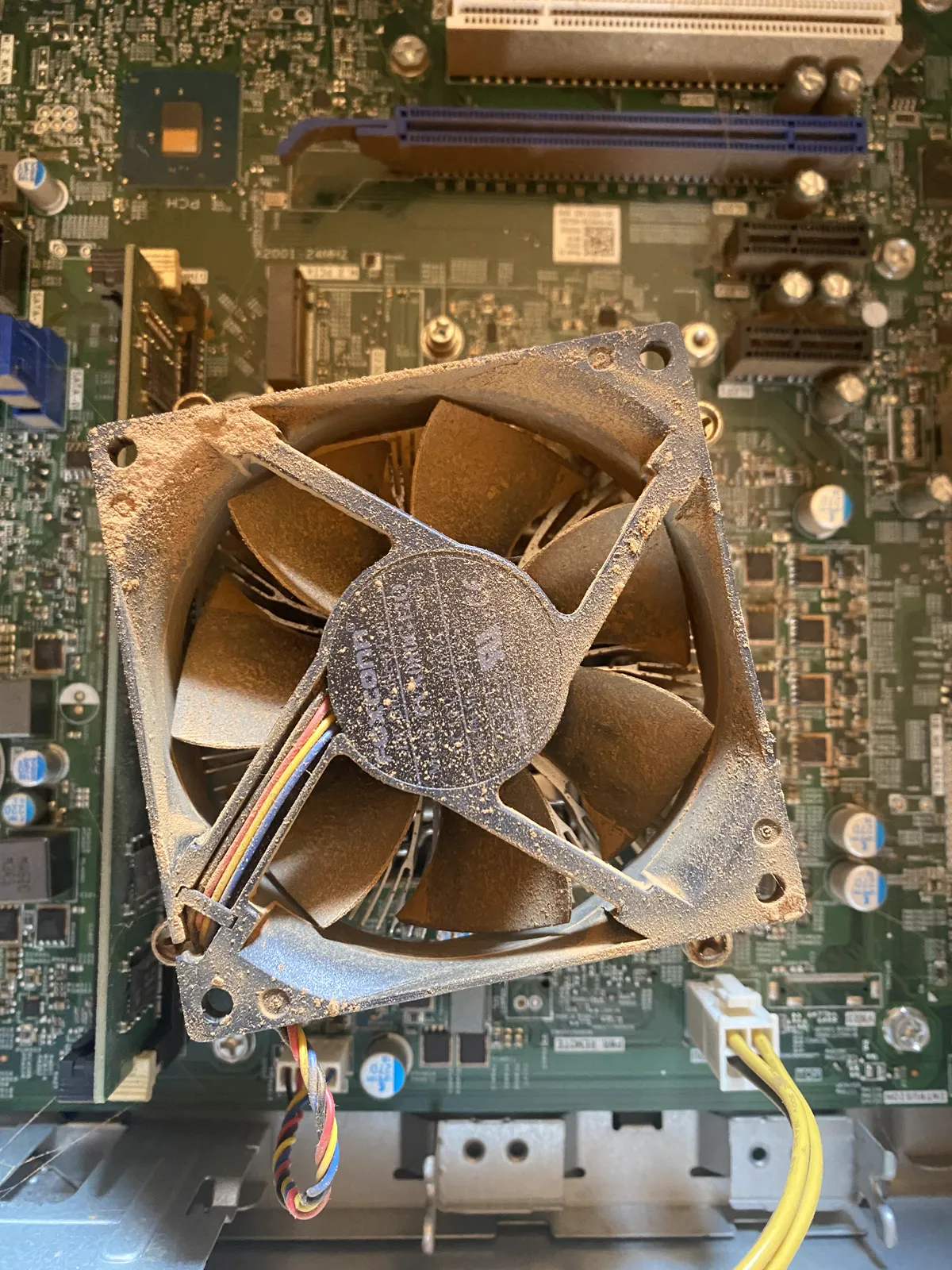
Dust is the slow cause that makes the fan louder over months. Dust on the fan blades and in the heatsink fins blocks airflow, so the fan must spin faster to move the same amount of air. A laptop that was quiet when new and grew loud over a year usually has dust, not a failing fan.
Find the Programs That Keep the Fan Busy
Open Task Manager on Windows or Activity Monitor on a Mac and sort by processor usage. Look for programs that stay busy while you do nothing. A single runaway tab, a stuck update, or a sync tool uploading files can each hold the processor high enough to keep the fan loud.
Check startup programs next. Apps that start with the system and run in the background keep the processor busy for the whole session. Disable the ones you do not need at login, then restart. A clean startup often quiets a fan that has been loud since the first minute of every day.
Watch for a process that spikes and falls in a cycle. A backup tool, an antivirus scan, or an indexing service that runs every hour can make the fan surge on a schedule. If the fan noise follows a pattern, the schedule is the cause, and you can change the schedule to a time when the noise does not matter.
Clear the Airflow Path
Move the laptop to a hard, flat surface. A bed, a sofa, or a lap blocks the intake vents on the bottom, so the fan spins faster while moving less air. A desk or a large book lets the vents breathe, and the fan can slow down because each spin moves more air. This single change quiets many loud laptops immediately.
Lift the rear of the laptop slightly. A small gap under the back edge opens the intakes and improves airflow without any tools. A laptop stand does the same job more neatly, and it also improves the screen height, so it is a good purchase for a laptop that lives on one desk.
Blow dust out of the vents with short bursts of compressed air. Hold the can upright, keep the bursts short, and hold the fan still so it does not spin freely. Work from the outside first.
Power Plans and Fan Curves
Switch to a balanced power plan for everyday work. Performance modes let the processor boost to its highest speeds and hold them there, which generates the most heat and the most fan noise. Balanced mode still responds quickly, but it lets the processor relax between bursts, so the fan spends more time quiet.
Check the fan settings in the manufacturer app. Many laptops offer quiet, balanced, and performance fan modes, and a laptop set to performance will run the fan hard even during light work.
Cap the maximum processor speed if the fan stays loud. On Windows, the advanced power settings include:
- A maximum processor state
- Lowering it to 95 or 90 percent often cuts heat
- Noise sharply with little visible slowdown
When the Fan Itself Is the Problem
A fan that grinds, clicks, rattles, or buzzes has a mechanical fault. A grinding fan has a worn bearing, a rattling fan has a loose blade or a cable touching the blades, and a buzzing fan may be clogged with debris. Mechanical noise does not respond to settings, and it usually gets worse, so plan a repair rather than another software change. Mechanical noise does not respond to settings, and it usually gets worse, so plan a repair rather than another software change.
Test with the laptop cool and idle. If the fan is loud within seconds of a cold start, before the processor has any reason to be hot, the fan controller or the temperature sensor may be faulty.
Replace the fan when cleaning and settings do not help and the noise is mechanical. A replacement fan is inexpensive for most laptop models, and a service shop can fit it quickly.
Before you go, take a look below: more fan-noise guides, hand-picked to follow this one.
Reference: All The Time — Wikipedia
Related Articles:
- Liquid Cooling Fan Noise: Troubleshooting Guide
- Mikrotik RouterOS Fan Noise: Repair & Quiet Your Router
- Fix Discord Loud Fan Noise: A Beginner's Guide
What is your take?
Share your experience or questions in the comments — especially if you have used this tech yourself.
Found this useful? Share it with a friend who would want to know.