
5 min read
A cable modem is the box that connects your home to the internet through the coaxial cable line that once carried only TV. It talks to your internet provider equipment, turns the cable signal into internet data, and hands that connection to your router or computer. Without a modem, your router has no internet to share.
This guide explains what is a cable modem and how it differs from a router. You will learn what each box does, why providers often combine them into one device, and how to choose and set up the right modem for your plan.
What a Cable Modem Does
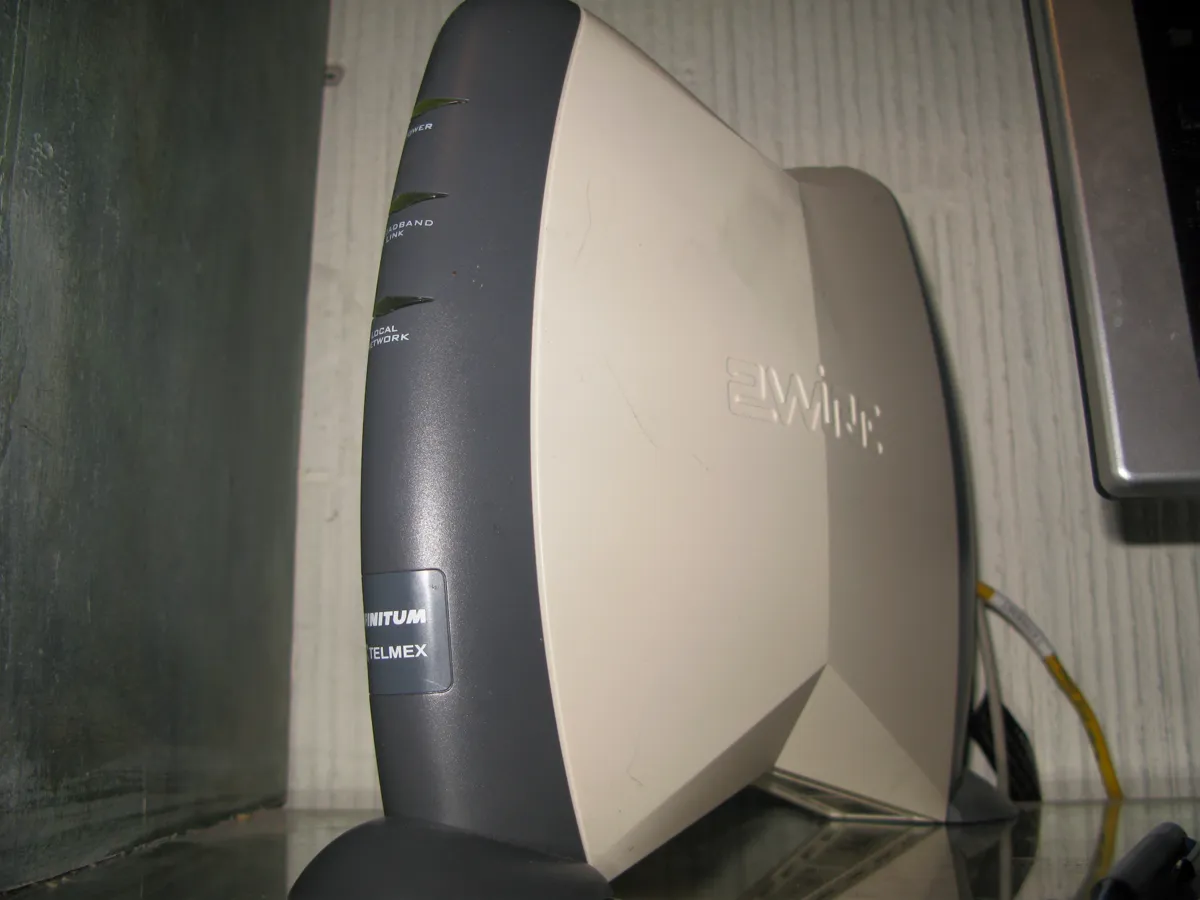
A cable modem connects to the internet provider through the coaxial cable in your wall. It uses a standard called DOCSIS to send and receive data over the same cable that carries TV channels. The modem logs in to the provider network, gets a public IP address, and passes the connection on through an Ethernet port.
The modem does not create a Wi-Fi network and does not assign local addresses to your devices. It gives the internet connection to exactly one device, usually your router, through that Ethernet port.
Modems have a small set of lights that show the connection state: power, downstream, upstream, online, and link. When the downstream and upstream lights lock and the online light turns solid, the modem has connected to the provider.
What a Router Does
A router takes the single internet connection from the modem and shares it with all your devices. It creates a local network, assigns private addresses to each device, and routes traffic between the devices and the internet. The router also runs the firewall that blocks unwanted incoming connections.
The router creates your Wi-Fi network and manages the wired Ethernet ports. It decides which device gets priority, handles the guest network, and runs the parental controls. Everything you think of as your home network, including:
- The Wi-Fi name and password
- Lives on the router
- Not the modem
A router without a modem has nothing to share. If you plug a router into a wall without a modem, your devices can talk to each other on the local network, but none of them can reach the internet. The modem brings the internet in, and the router shares it out, which is why you need both.
Modem, Router, and Gateway
A gateway, also called a modem-router combo, packs both boxes into one device. The provider usually rents you a gateway, and it handles the cable connection, the routing, and the Wi-Fi in a single box. A gateway is simple to set up, since you plug in one device and connect to its Wi-Fi.
The downside of a gateway is that you control it less. Provider gateways often have weak Wi-Fi, limited settings, and a monthly rental fee. Many people put the gateway into bridge mode, which turns off its router part, and connect their own better router behind it for stronger Wi-Fi and more control.
Separate devices give you the most control and the best performance. You buy a modem that matches your plan speed, you buy a router that fits your home, and you replace each one on its own schedule. A separate setup costs more up front but saves the rental fee and lets you upgrade the router without touching the modem.
Choose the Right Modem
Match the modem DOCSIS version to your plan. DOCSIS 3.0 suits plans up to about 500 Mbps, while DOCSIS 3.1 suits gigabit plans and newer provider networks. A DOCSIS 3.0 modem on a gigabit plan caps your speed, and a DOCSIS 3.1 modem on a slow plan wastes money, so check your plan speed first.
Check the provider approved list before you buy. Providers publish a list of modems they support, and a modem that is not on the list may fail to activate. The approved list also shows the maximum speed the provider allows for each modem, which is the real speed limit for your home.
Count the channels, since more downstream channels usually mean faster and more stable service on a busy cable node. A modem with 32 downstream channels handles peak evening traffic better than one with 8 channels. The channel count matters less than the DOCSIS version, but it is a useful tiebreaker between two similar modems.
Set Up and Troubleshoot a Modem
To set up a modem, connect the coaxial cable to the modem, plug in the power, and wait for the lights to lock. Connect the modem Ethernet port to the router WAN port, then call the provider or open the activation page to register the modem MAC address, which is printed on the modem label.
If the modem will not come online, check the coaxial connection first. A loose connector, a splitter with too many branches, or a damaged cable can block the signal. Connect the modem directly to the main cable entry point with no splitter to test, and check whether the lights lock there.
If the modem connects but the speed is low, test with a computer plugged straight into the modem, bypassing the router. A fast direct test means the router is the bottleneck, while a slow direct test means the modem or the cable line needs attention. Call the provider with the direct test result, since it proves where the problem lies.
More ideas, fewer dead ends: the related guides below continue this thread, beginning with Fiber ONT Boxes Explained for New Subscribers.