
5 min read
A desktop PC collects dust inside because its fans pull room air through the case all day, and that air carries lint, skin flakes, pet hair, and fine dirt. The dust settles on fans, heatsinks, and filters, and it slowly blocks airflow until the PC runs hotter, louder, and slower. A little prevention keeps the inside clean for months instead of weeks.
This guide shows how to stop a desktop PC from collecting dust inside. You will learn how dust gets in, how to set up filters and airflow to keep it out, and the cleaning routine that stops buildup before it hurts performance.
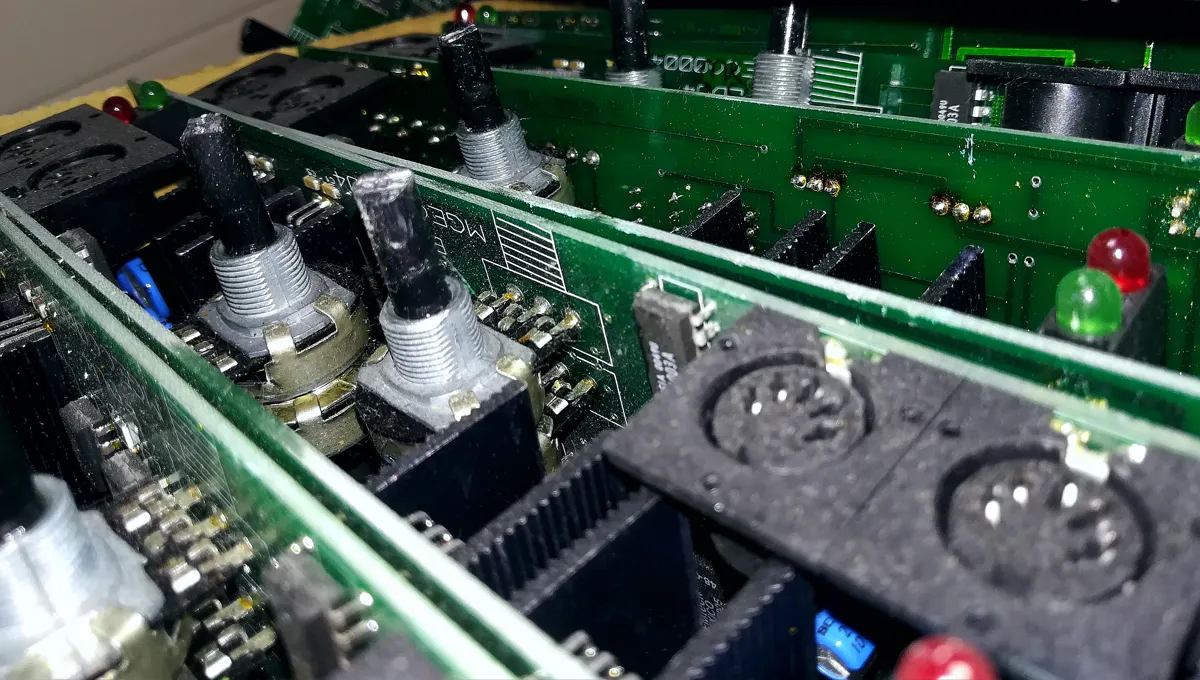
How Dust Gets Inside
Dust enters through every opening in the case: the front intake, the rear exhaust, the side vents, and the gaps around the panels. The intake fans pull air in, and the air carries dust with it.
Negative pressure happens when the exhaust fans move more air out than the intake fans bring in. The case then sucks air, and dust, through every unfiltered gap.
Where the PC sits matters as much as the fans. A PC on a carpeted floor sucks up floor dust and pet hair, while a PC on a desk breathes cleaner air. A PC next to a window, a door, or a busy walkway collects far more dust than one in a quiet corner.
Filters and Airflow Setup
Use the dust filters that came with the case, and cover every intake with a filter. Most cases have a front filter and a bottom filter for the power supply, and some add a top filter. A filter on every intake stops most dust before it reaches the parts, and it takes seconds to clean.
Set the fans for slight positive pressure. Run the intake fans a little faster than the exhaust fans, or add one more intake fan than exhaust fans. The goal is a gentle outward leak through the gaps, not a strong wind, so a small difference is enough. Check the fan speeds in the BIOS or the fan control software.
Do not block the intakes with a wall, a curtain, or a stack of papers. A blocked intake forces the fans to pull air through the gaps, which defeats the filters. Leave at least a few inches of clear space in front of every intake and behind every exhaust.
Where to Put the PC
Put the PC on a desk or a stand, not on the floor. Floor air holds the most dust, and carpet fibers and pet hair gather at floor level. A desk stand that lifts the PC even a few inches above the floor cuts dust intake sharply, and it also improves airflow around the case.
Keep the PC away from windows, exterior doors, and heating vents. A window lets in outdoor dust and pollen, a door stirs up dust every time it opens, and a heating vent blows dust-laden air straight at the case. A quiet corner of the room, away from traffic, stays cleanest.
Keep pets away from the intake side if you can. Pet hair is the fastest way to clog a filter, and a cat that sleeps next to the PC fills the filter within days. A PC in a room the pets rarely enter stays clean far longer than one in the living room.
Cleaning Routine
Clean the filters every month. Slide the filters out, rinse them under water if the maker allows it, or wipe them with a dry cloth, and let them dry fully before you refit them. A clogged filter chokes airflow worse than no filter at all, so a dirty filter is worse than useless.
Clean the inside every three to six months with compressed air. Turn the PC off, take it outside if you can, and blow dust out of the heatsinks, the fans, and the corners. Hold the fans still while you blow them, since a spinning fan can generate voltage and wear the bearing.
Do not use a vacuum cleaner inside the case. A vacuum nozzle builds static electricity that can damage components, and it can knock small parts off the board. Compressed air, a soft brush, and a microfiber cloth are the safe tools. A small electric blower made for PCs is a good reusable alternative to air cans.
When Dust Has Already Built Up
If the PC already runs hot and loud, clean it thoroughly before you change any settings. Remove the side panel, blow out every heatsink and fan, and wipe the blades with a cloth. Check the CPU and GPU temperatures after cleaning, since a big drop confirms that dust was the problem.
Replace a filter that is torn, warped, or missing. A filter with a hole lets a stream of dust straight into the case, and a warped filter leaves a gap at the edge. Replacement filters are cheap, and a magnetic filter frame fits most cases without tools.
If the PC still runs hot after a full cleaning, check the thermal paste and the fan speeds. Dust is the most common cause of heat, but old thermal paste or a dying fan can cause the same symptoms. A clean PC that still overheats needs a deeper check, not more dusting.
If you came for computer-maintenance, stay a little longer — the picks below are closely related, starting with PC Data Loss Recovery: How to Repair and Recover Your Files.