
5 min read
A wireless mouse that lags on a new surface is a common surprise after moving to a new desk, a glass table, or a glossy pad. The pointer stutters, jumps, or freezes for a split second, even though the mouse worked fine on the old desk. The cause is almost always the sensor, which cannot read the new surface clearly, and not the wireless connection.
This guide shows how to fix a wireless mouse that lags on a new surface. You will test the surface first, clean the sensor, fix the wireless link, and learn which surfaces work best for optical and laser mice.
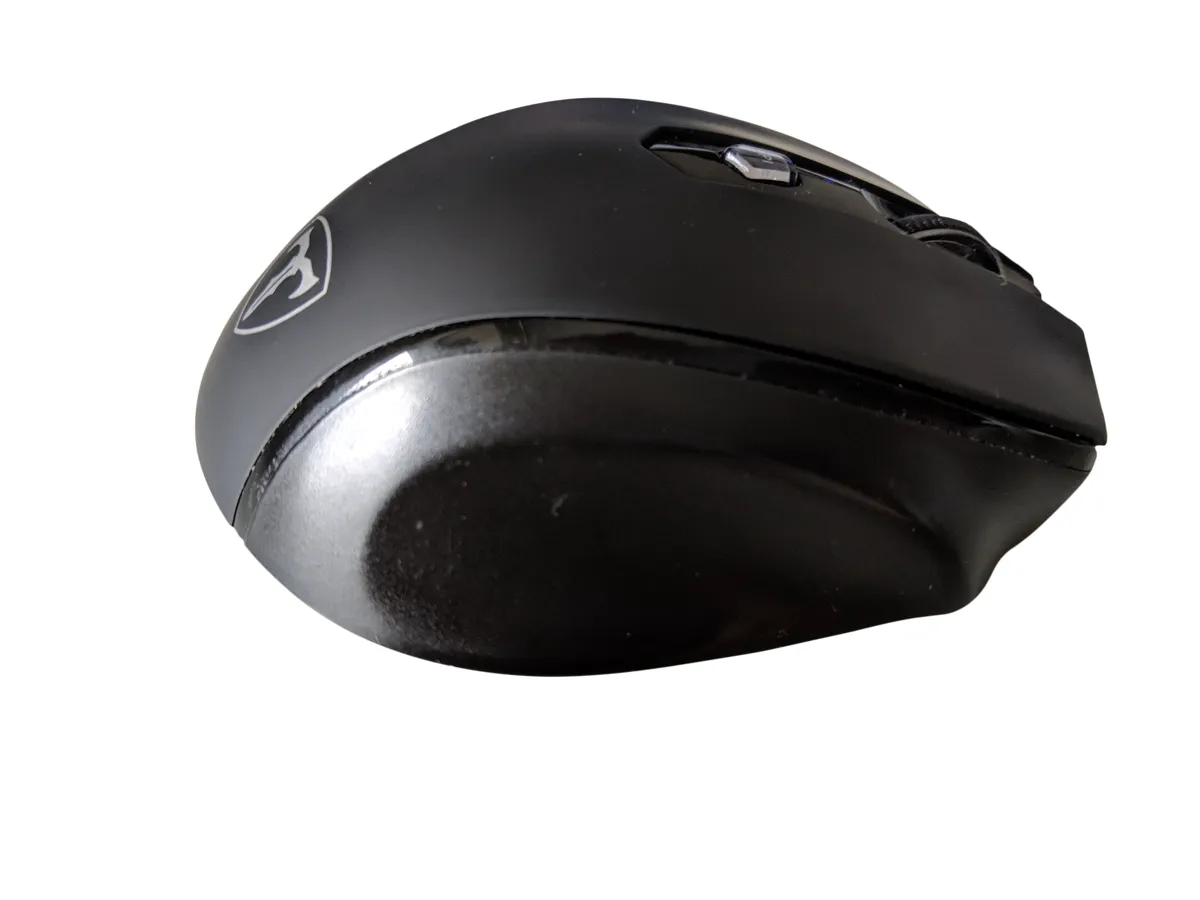
Why the Surface Matters
A wireless mouse tracks movement by taking thousands of tiny pictures of the surface and comparing them. The sensor needs texture, contrast, and a consistent pattern to measure movement.
Optical mice use a red or infrared LED and struggle most on shiny or transparent surfaces. Laser mice use a finer beam and track on more surfaces, including some glossy ones, but even a laser mouse can fail on clear glass. A surface that looks fine to your eyes can be invisible to the sensor.
The first test is simple: put the mouse on a sheet of plain paper or a book and move it. If the lag vanishes on paper, the surface is the problem, not the mouse. If the lag stays on paper too, the problem is the battery, the receiver, or the mouse itself.
Clean the Sensor and Feet
Turn the mouse over and look at the sensor window, the small hole near the middle of the base. Dust, hair, or a crumb over the window blocks the sensor view and causes lag on any surface. Blow the dust out with a short burst of compressed air, and wipe the window gently with a dry microfiber cloth.
Check the glide feet, the smooth pads on the base of the mouse. A worn or missing foot makes the mouse tilt, which changes the distance between the sensor and the surface. A tilted sensor reads the surface badly and lags. Replacement feet are cheap and stick on in seconds.
Clean the surface itself as well. A greasy patch, a sticky spot, or a film of dust on the desk can make the sensor lose track in one area and work fine in another. Wipe the desk with a damp cloth, let it dry, and test the mouse again before you buy anything.
Fix the Wireless Link
Move the USB receiver closer to the mouse. A receiver plugged into the back of a desktop, behind a metal case, has a weak signal that drops packets and looks like lag. Plug the receiver into a front port, a USB extension cable, or a port on the monitor, and keep it within a meter of the mouse with a clear line of sight.
Replace the battery, even if the mouse still lights up. A weak battery can keep the lights on while the radio signal gets too weak to send clean data, and the pointer stutters. A fresh battery fixes more wireless lag than any software setting.
Move other wireless devices away from the receiver. A Wi-Fi router, a Bluetooth speaker, or a second wireless mouse next to the receiver can crowd the 2.4 GHz band and delay the mouse signal. Keep the receiver away from the router and from USB 3 ports, which can interfere with the mouse radio.
Use a Mouse Pad
The simplest fix for a bad surface is a mouse pad. A plain cloth pad gives the sensor a consistent, high-contrast texture, and it works with almost every mouse. Pick a pad large enough that the mouse never slides off the edge during a fast movement, since sliding off the pad causes the same lag as a bad desk.
Avoid pads with bold patterns, bright logos, or reflective coatings. The sensor reads a uniform dark or neutral surface best, and a busy pattern can confuse it at high speed. A plain black or dark gray cloth pad is the safest choice for tracking.
If you prefer a hard pad, choose a matte finish, not a glossy one. Glossy hard pads look sleek but reflect the sensor light and cause the same stutter as glass. A matte hard pad tracks well and cleans easily, which suits an office desk.
Adjust Settings and Firmware
Lower the polling rate if the mouse software allows it. A polling rate of 1000 Hz sends movement data a thousand times per second, and a weak wireless link can drop some of those packets, which feels like lag. A rate of 500 Hz halves the traffic and often feels smoother on a crowded desk.
Update the mouse firmware through the maker software. Firmware updates fix sensor bugs that cause lag on specific surfaces, and they improve the wireless link. Keep the mouse still and the receiver plugged in during the update, and do not turn the mouse off until the update finishes.
If the lag persists on every surface, with a fresh battery and a close receiver, the mouse itself may be failing. Try the mouse on another computer to confirm. A mouse that lags on two computers with a good surface and a fresh battery needs a repair or a replacement, not more settings.
Still curious? The related reads below dig deeper, starting with Gaming Mouse WiFi Disconnecting: Solutions & Best Practices.