
5 min read
A printer that prints blank pages is frustrating, because it uses paper and ink while delivering nothing. The printer sounds busy, the page comes out clean, and the document you needed is still on the screen. In most cases the cause is empty ink, a clogged nozzle, or a driver problem, and all three are fixable.
This guide shows how to fix a printer that prints blank pages. You will check the ink and the nozzles first, then the driver and the document, and you will learn when a cleaning cycle helps and when it wastes ink.
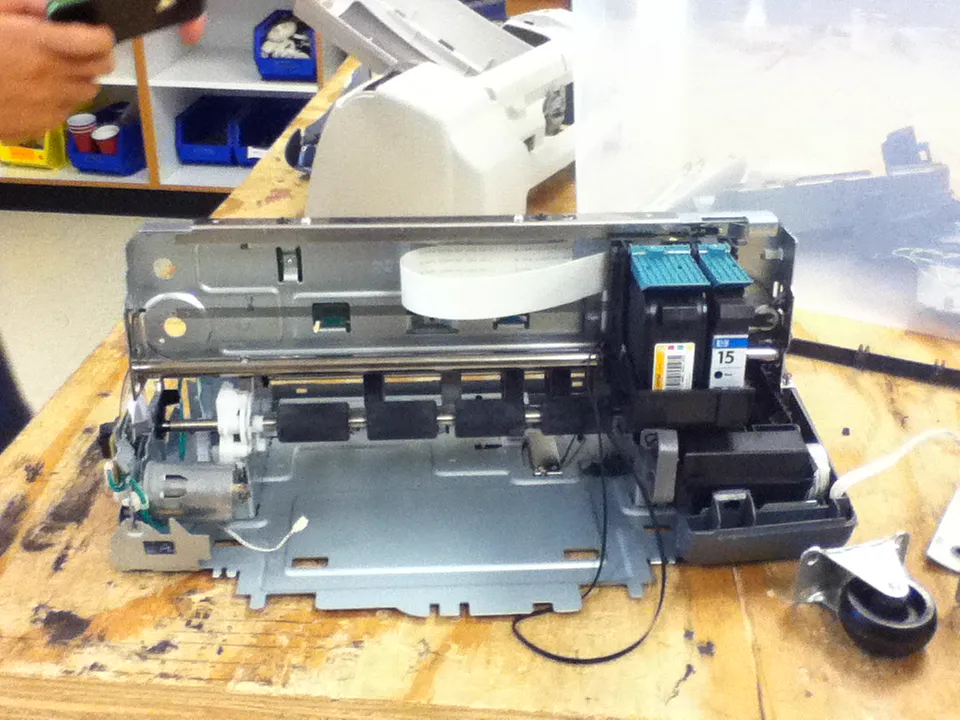
Why a Printer Outputs Blank Pages
Blank pages happen when the printer moves paper correctly but puts no ink or toner on it. The paper path works, the motor works, and the computer thinks the job succeeded, so the fault hides in the ink delivery or the instructions the printer received. That is why a blank page rarely means the printer is dead.
The most common cause on inkjet printers is a clogged print head. Ink dries in the tiny nozzles when the printer sits unused, and the dried ink blocks the flow. The printer still runs its normal motion, but no ink reaches the page, so every sheet comes out blank.
A driver or document problem is the third cause. A corrupted driver can send a job the printer cannot interpret, and a document with white text on a white background prints blank by design. Checking the ink first and the document second separates the physical faults from the software ones quickly.
Check Ink, Toner, and Cartridge Seating
Check the ink or toner levels in the printer software or on the printer display. A cartridge that reports empty is the simplest explanation, and some printers refuse to print from a color cartridge even for black-only pages when one cartridge is empty.
Reseat the cartridges. Open the printer, remove each cartridge, check that the protective tape is gone, and push it back in until it clicks. A cartridge that sits slightly loose cannot deliver ink to the print head, and a new cartridge with the tape still on cannot deliver anything at all.
For laser printers, remove the toner cartridge and rock it gently side to side to redistribute the toner, then reinstall it. A toner cartridge that is nearly empty can print blank pages when the toner settles to one side.
Clean the Print Head and Run a Nozzle Check
Run a nozzle check from the printer maintenance menu. The printer prints a test pattern that shows which colors flow and which are blocked. If the pattern is missing lines or colors, the nozzles are clogged, and the pattern tells you exactly which color needs cleaning.
Run one head cleaning cycle, then print another nozzle check. The cleaning cycle pushes ink through the nozzles to dissolve dried ink. One cycle often restores a mildly clogged head.
Let the printer rest between cleanings. A rest of an hour lets the cleaning fluid and fresh ink soften a stubborn clog. If three cleanings and a rest do not restore the pattern, the print head may need a manual clean with distilled water on a lint-free cloth, or a replacement head, depending on your printer model.
Driver, Document, and Skip-Blank-Page Settings
Print a test page from the printer itself, using the button or menu on the device. If the printer test page prints correctly, the hardware is fine, and the fault is in the driver or the document. If the printer test page is also blank, the fault is physical, and no driver change will fix it.
Check the document. Print a different file, such as a plain text page, and see whether it also comes out blank. A document with white text, hidden layers, or a print range set to an empty page will print blank by design. Also check the driver setting that skips blank pages, since an overeager skip setting can drop pages that look empty to the driver but are not. Also check the driver setting that skips blank pages, since an overeager skip setting can drop pages that look empty to the driver but are not.
Reinstall the printer driver if the hardware test page is fine but every document prints blank. Remove the printer from the system settings, download the current driver from the printer maker, and add the printer again. A driver corrupted by an update is a common cause of blank output that survives a restart.
When the Printer Needs Service or Replacement
A print head that stays blocked after cleaning and rest usually needs replacement. On printers with a removable head, a new head costs less than a new printer and restores full quality.
A laser printer that prints blank pages with a fresh toner cartridge may have a failed drum, fuser, or transfer roller. These parts are replaceable on many laser models, and the printer manual lists their expected lifespan. Compare the repair cost with the price of a comparable new printer before you order parts.
Prevent the next blank-page episode by printing regularly. A short color page once a week keeps inkjet nozzles wet and prevents the drying that causes most clogs.
Your project does not have to end with this page — Fixing NVMe SSD No Sound: A Step-by-Step Troubleshooting Guide shows a good way to carry it forward.
Reference: Blank Pages — Wikipedia
Related Articles:
- Fixing NVMe SSD No Sound: A Step-by-Step Troubleshooting Guide
- Laptop Not Turning On: Step-by-Step Fixes for a Dead PC
- Wireless Mouse Forgotten Password: Solutions
What is your take?
Share your experience or questions in the comments — especially if you have used this tech yourself.
Found this useful? Share it with a friend who would want to know.