
5 min read
A file recovery tool promises to bring back deleted files, formatted drives, and lost photos. Sometimes it works brilliantly, and sometimes it finds nothing at all. The difference is not the tool. It is how the file was lost, what happened afterward, and what kind of storage held it.
This guide explains what a file recovery tool is and when it cannot help. You will learn how deleted files survive, where recovery fails, how to use a tool safely, and why backups beat recovery every time.
What a File Recovery Tool Can Do
A file recovery tool scans a drive for traces of deleted files and rebuilds them. When you delete a file, the operating system usually removes only the directory entry and marks the space as free. The file data stays on the disk until something else overwrites it. A recovery tool finds that orphaned data and restores it to a new file.
Recovery tools work best for recently deleted files on a drive that has seen little use since the deletion. A photo deleted yesterday from a camera card that has sat untouched since then is highly recoverable.
Good tools offer a preview before recovery. You can see whether a photo is intact, whether a document opens, and whether the file size looks right. Preview saves time, because it tells you which files are worth recovering before you copy hundreds of damaged fragments to another drive.
How Deleted Files Survive
Deleting a file is like removing a book from a library catalog while leaving the book on the shelf. The catalog no longer lists it, but the pages remain until the library needs the shelf space. A recovery tool reads the shelves directly, ignoring the catalog, and finds books that are still there.
Formatting usually works the same way. A quick format rewrites the catalog but leaves the data untouched, which is why quick-formatted drives are often recoverable. A full format overwrites the data, and an encrypted drive that loses its key cannot be read at all, even if the data is still there.
File systems differ in how long traces survive. A drive with a simple file system and little activity keeps traces longer. A drive with TRIM, journaling, or heavy background writes clears traces faster. This is why the same tool can recover everything from one drive and nothing from another.
Where Recovery Fails
Recovery fails when the data is overwritten. Installing the recovery tool on the same drive, saving new files to it, or letting the system run for days can overwrite the deleted data. Once new data occupies the old space, the original file is gone for good, and no tool can bring it back.
SSDs are harder to recover than hard drives because of TRIM. TRIM tells the SSD to clear deleted blocks promptly, which keeps the drive fast but erases deleted data within minutes or hours. A file deleted from an SSD with TRIM active may be unrecoverable the same day, while the same file on a hard drive could survive for weeks.
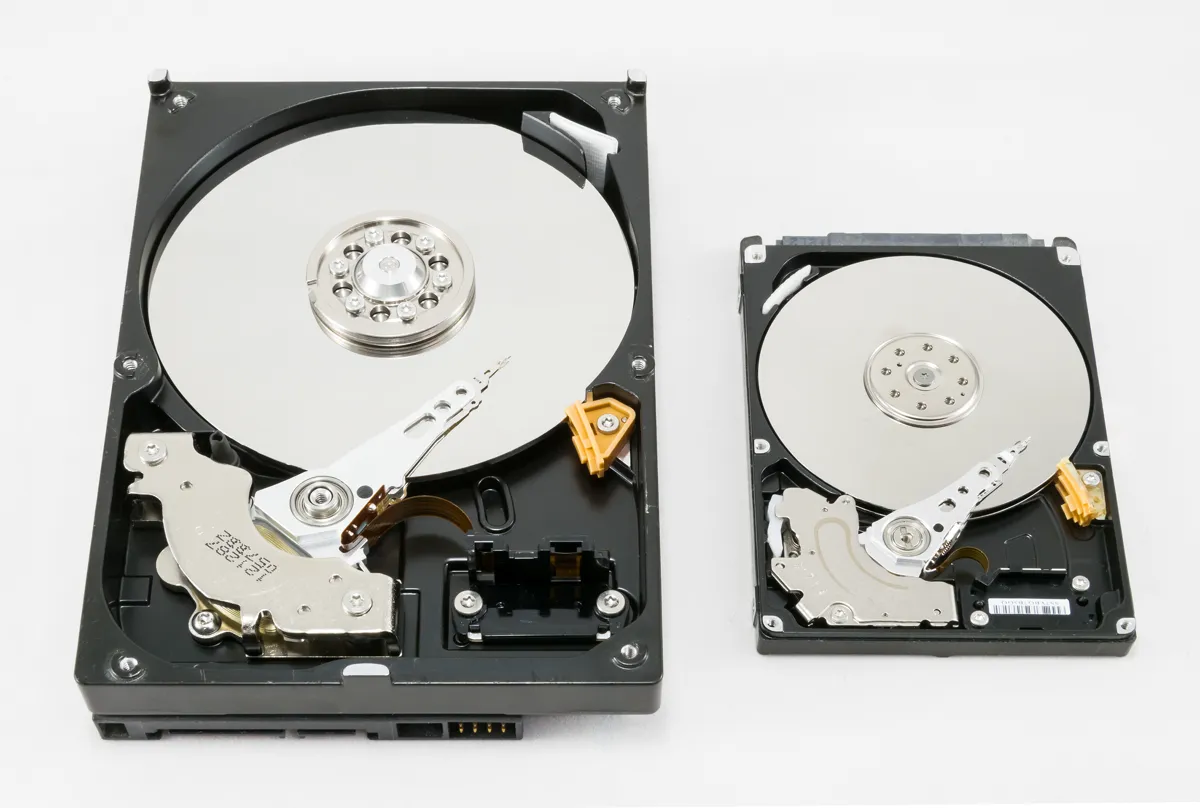
Physical damage defeats software recovery. A drive that clicks, grinds, or is not detected at all needs a clean-room lab, not a download. Running a recovery tool on a failing drive can make the damage worse. If the drive makes unusual noises, stop using it and seek professional help.
Using a Recovery Tool Safely
Stop using the affected drive at once. Do not install software on it, do not save files to it, and do not run a repair tool on it. Every write risks overwriting the data you want. If the drive is the system drive, shut the computer down and remove the drive, or boot from a USB recovery drive instead.
Recover to a different drive. A recovery tool should read from the damaged drive and write recovered files to a healthy drive. Recovering to the same drive can overwrite the very files the tool is still trying to read. Keep a spare drive or a large USB stick ready before you start.
Recover the most important files first, and verify each one as you go. Open recovered photos and documents to confirm they are intact. A recovered file with the right name but corrupted content is not a recovery. If the first files come back damaged, the drive may be too far gone for a simple tool.
Better Than Recovery: Backups
A backup makes recovery unnecessary. A file in two places survives deletion, formatting, theft, and drive failure, while a file in one place depends on a recovery tool and luck. Set up automatic backup for the folders that matter, and test the backup by restoring a file now and then.
Follow the 3-2-1 rule: three copies of important data, on two different kinds of storage, with one copy off site. A local external drive plus a cloud backup covers most home needs. A single external drive is better than nothing, but it fails if the drive is lost, stolen, or damaged along with the computer.
Versioned backups protect against more than deletion. They let you restore yesterday version of a document you overwrote today, or last week version of a photo you edited badly. A recovery tool cannot restore a version you saved over; a versioned backup can, which is why backups beat recovery every time.
Before you go, take a look below: more data-recovery guides, hand-picked to follow this one.
Related Articles:
- AMD Processor Data Loss: Solutions & Prevention
- How to Repair Gaming Desk Data Loss 2026 Guide
- SD Card Password Recovery: Affordable Solutions
What is your take?
Share your experience or questions in the comments — especially if you have used this tech yourself.
Found this useful? Share it with a friend who would want to know.