
5 min read
A USB-C hub can add ports, a monitor, and charging through a single cable, but not every hub can power every laptop. The power rating tells you how much charging power the hub can pass to the laptop, and a hub with too little power will charge slowly or lose charge during heavy work.
This guide explains what a USB-C hub power rating is and why it matters. You will learn what watts, volts, and amps mean, how powered and bus-powered hubs differ, and how to match a hub to your laptop without overspending.
What a Hub Power Rating Means
The power rating of a USB-C hub is the maximum charging power it can deliver to the laptop, measured in watts. A hub rated at 100 watts can pass up to 100 watts from the charger to the laptop, while a hub rated at 60 watts tops out at 60 watts.
The hub itself consumes a small amount of power to run its own chips. A hub rated at 100 watts of pass-through charging may deliver around 85 to 90 watts to the laptop after its own use. That overhead is normal, and it matters when your laptop needs close to the full rating.
Power ratings also depend on the cable. A cheap USB-C cable may only carry 60 watts, even if the hub and charger support more. The whole chain is limited by its weakest part, so a high-rated hub with a low-rated cable still charges slowly. Always check the cable rating along with the hub rating.
Powered, Bus-Powered, and Pass-Through
A bus-powered hub takes all its power from the laptop. It is small and portable, and it works well for a mouse, a flash drive, or a card reader. It cannot charge the laptop, and it can drain the battery faster because the laptop powers the hub and everything attached to it.
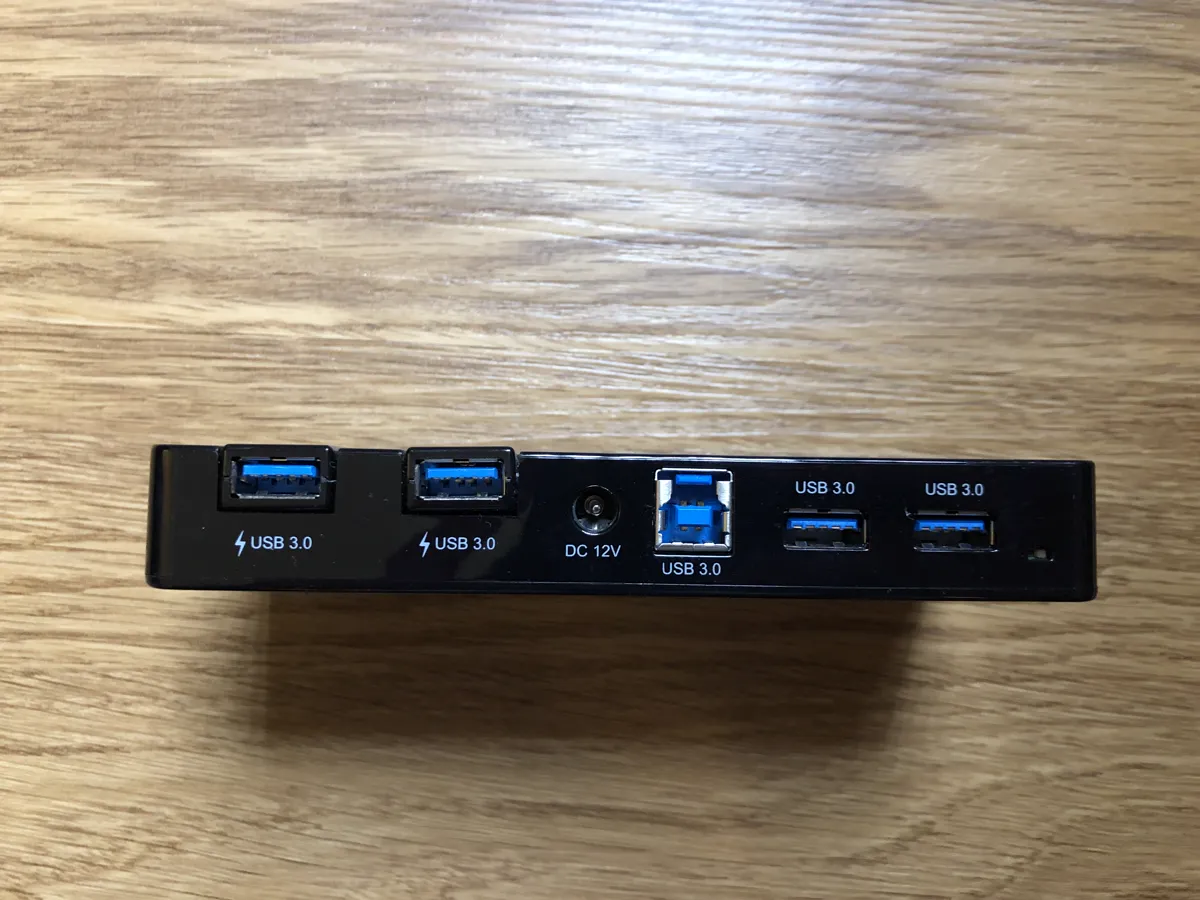
A pass-through hub, also called a hub with power delivery, has a USB-C port for your charger. You plug the charger into the hub, and the hub passes power to the laptop while running the other ports.
A powered hub has its own power adapter and does not draw power from the laptop at all. These hubs are larger and more expensive, but they can run many power-hungry devices at once without draining the laptop. They suit a permanent desk setup with several drives, a monitor, and charging accessories.
Reading Watts, Volts, and Amps
Watts measure total power, and watts equal volts times amps. A charger labeled 20 volts and 5 amps delivers 100 watts, while a charger labeled 20 volts and 3 amps delivers 60 watts. USB-C Power Delivery uses several voltage levels, and the charger and laptop negotiate the highest level both support.
Check three numbers before you buy: the charger wattage, the hub pass-through wattage, and the laptop charging requirement. The charger must meet or exceed the hub rating, and the hub rating must meet or exceed the laptop requirement. If any number falls short, charging slows down or the battery drains during heavy use.
Watch for misleading labels. Some hubs advertise 100-watt charging but only deliver that much to one port, or only when the other ports are idle. Read the fine print and look for the pass-through charging figure specifically. A hub that lists total power without a pass-through figure may not deliver what you expect.
Matching the Hub to Your Laptop
Find your laptop charging requirement first. Check the wattage printed on the original charger, or look it up in the laptop specifications. A small ultrabook may need 45 or 65 watts, a performance laptop may need 90 watts, and a gaming laptop may need 140 watts or more. A hub rated above that number gives comfortable headroom.
Choose a hub with some margin. If your laptop needs 65 watts, a 100-watt pass-through hub charges at full speed even after the hub overhead. If your laptop needs 100 watts, look for a 140-watt hub. A hub that only just meets the requirement will charge slowly whenever the laptop is working hard.
Consider the ports you actually need. A hub with an HDMI port, two USB-A ports, a card reader, and Ethernet covers most desk setups. Every extra port adds cost and size, and a hub with ports you never use is money spent on nothing. Match the hub to your real setup, not to a wish list.
Common Power Mistakes to Avoid
The most common mistake is using the wrong charger with the hub. A phone charger rated at 18 watts will not charge a laptop through a hub, even if the hub supports 100 watts. The hub cannot create power it does not receive. Always pair the hub with a charger rated at or above the hub pass-through figure.
Another mistake is daisy-chaining hubs. Connecting one hub to another splits the power budget and can make devices drop out or charge slowly. If you need more ports, buy one larger hub or a powered dock instead of chaining two small hubs together.
Do not ignore heat. A hub that runs very hot during charging may be overloaded or poorly built. Move it to open air, reduce the load, and replace it if it stays hot. A quality hub from a known brand costs more, but it protects a laptop that costs far more than the hub.
The best way to learn usb is to keep going. Your next read is right below: Webcam Boot Failure: Troubleshooting & Best Practices.
Reference: Why It Matters — Wikipedia
Related Articles:
- Webcam Boot Failure: Troubleshooting & Best Practices
- Troubleshooting USB Flash Drive BSOD: A Budget-Friendly Guide
- UPS Battery Backup Keyboard Not Working: Troubleshooting
What is your take?
Share your experience or questions in the comments — especially if you have used this tech yourself.
Found this useful? Share it with a friend who would want to know.