
5 min read
A laptop cooling pad is a stand with fans that blows air under your laptop. Sellers promise lower temperatures, faster performance, and a longer laptop life. The reality is more modest: a cooling pad helps some laptops a lot, some a little, and some not at all.
This guide explains what a laptop cooling pad is and whether it actually helps. You will learn how laptop cooling works, what to look for when buying, what a pad cannot fix, and who should buy one.
What a Cooling Pad Actually Does
A cooling pad is a raised platform, usually with one or more fans, that sits under the laptop. The fans push cool air toward the intake vents on the bottom of the laptop, and the raised angle improves airflow underneath. Some pads also act as a simple stand with no fans at all, relying on elevation alone.
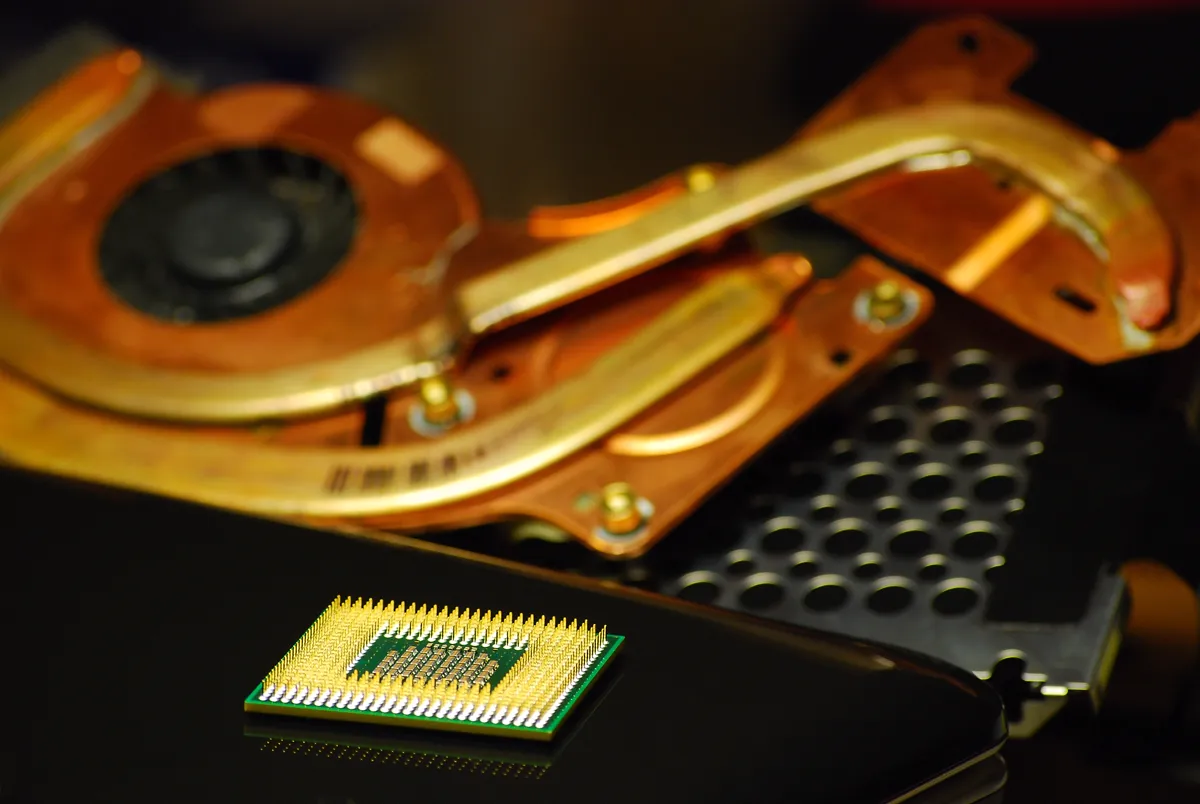
The pad helps the laptop built-in cooling system rather than replacing it. A laptop cools itself with internal fans and heat pipes that move heat away from the processor and graphics chip. The pad supplies cooler intake air, which lets those internal parts work more efficiently.
Most pads power their fans from a USB port on the laptop. That is convenient, but it means the pad itself draws a little power and occupies a port. Some pads include a USB pass-through port so you do not lose the port entirely, which is worth checking before you buy.
How Laptop Cooling Works
A laptop processor generates heat whenever it works, and more heat when it works hard. The cooling system moves that heat to a fin stack, where a fan blows it out of the chassis. If the heat cannot escape fast enough, the processor slows itself down to protect itself, a behavior called thermal throttling.
Intake vents on the bottom are the weak point. On a soft bed, a blanket, or your lap, those vents get blocked, and the fan pulls in warm air or no air at all. Temperatures climb quickly, and throttling starts within minutes.
Ambient temperature matters too. A laptop in a hot room has less room to shed heat than the same laptop in a cool room. A cooling pad cannot beat a hot room, but it can help the laptop use whatever cool air is available. In a cool room with clear vents, the pad adds less benefit.
What to Look For When Buying
Match the pad size to the laptop. A pad that is too small leaves part of the laptop hanging over the edge, which blocks vents and wobbles. A pad rated for 17-inch laptops works for a 15-inch machine, but a pad rated for 14 inches will not suit a 17-inch laptop. Check the size rating before you buy.
Fan placement matters more than fan count. One large, quiet fan centered under the intake vents cools better than four small fans in the wrong places. Look for a pad with adjustable fan positions or a single large fan, and check reviews that measure temperature rather than noise alone.
Consider noise, build, and angle. A loud pad is annoying during calls and late-night work. A metal mesh pad lasts longer than a thin plastic one, and an adjustable angle improves typing comfort. A pad with a phone holder, a wrist rest, or RGB lighting adds cost without adding cooling, so skip extras you will not use.
What a Cooling Pad Cannot Fix
A cooling pad cannot fix a clogged internal fan. Dust builds up on the fan blades and the fin stack over months, and a pad blowing from outside cannot clear it. If the laptop fan rattles, runs constantly, or the laptop overheats even on a hard desk, the inside needs cleaning.
It cannot fix dried thermal paste either. Thermal paste carries heat from the processor to the heat pipes, and it dries out after years of use. A laptop that overheats despite clean fans and a cooling pad probably needs fresh paste.
It also cannot fix a laptop that is simply too weak for the workload. A thin ultrabook running a heavy game will throttle no matter what pad sits under it. The pad can delay throttling by a few minutes, but it cannot turn an ultrabook into a gaming laptop.
Verdict: Who Should Buy One
A cooling pad is worth buying if your laptop runs hot during games or editing, sits on a desk all day, and has clear bottom vents. Expect a drop of a few degrees and a small delay before throttling starts. That is enough to smooth out stutters and keep the fans quieter, even if it does not transform the laptop.
Skip the pad if your laptop already stays cool, if you mostly work on your lap, or if the laptop needs a cleaning. A simple laptop stand without fans gives the same airflow benefit for lap-free desk use at a lower price. Spend the pad money on a cleaning or a better stand instead.
If you buy one, measure the result. Check processor temperatures before and after with a free monitoring tool, under the same workload, for at least fifteen minutes. If the pad does not lower temperatures by at least two or three degrees, return it. A cooling pad should prove itself in numbers, not in promises.
Wrap up here, then dive into Fixing Android Loud Fan Noise: A 2026 Guide — it pairs well with what you just read.
Related Articles:
- Fixing Android Loud Fan Noise: A 2026 Guide
- Mikrotik RouterOS Fan Noise: Repair & Quiet Your Router
- WinRAR Fan Noise: Troubleshooting & Performance
What is your take?
Share your experience or questions in the comments — especially if you have used this tech yourself.
Found this useful? Share it with a friend who would want to know.