
5 min read
The motherboard is the large circuit board that connects every part of a computer. The processor, memory, storage, graphics card, and power supply all plug into it, and its traces carry data and power between them. When you choose a motherboard, you choose the limits of everything the computer can become.
This guide explains what a motherboard is and why it decides your upgrade path. You will learn about sockets, chipsets, slots, and memory support, and you will see how a motherboard choice made today shapes the upgrades available years later.
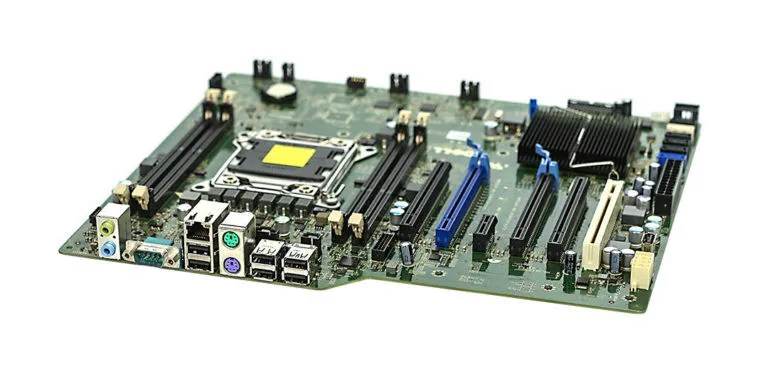
What a Motherboard Does
The motherboard is the backbone of the computer. It holds the CPU socket, the memory slots, the expansion slots, and the storage connectors, and it links them with copper traces that carry signals at high speed. Without it, the parts would have no way to talk to each other, and no way to share power from the supply.
The chipset on the motherboard manages traffic between the parts. It decides how many USB ports, storage drives, and expansion cards the system can run, and how fast they communicate. A basic chipset covers everyday needs, while a high-end chipset adds more lanes, more ports, and features such as overclocking support and faster storage options.
The motherboard also carries the firmware that starts the computer. When you press the power button, the firmware on the motherboard wakes the hardware, checks that memory and drives are present, and hands control to the operating system.
The CPU Socket Sets the First Limit
The CPU socket is the physical and electrical match between the motherboard and the processor. A processor only fits the socket it was designed for, and the socket also defines which generations of processors the board can run.
Socket generations change every few years. When a new processor family needs a new socket, older motherboards cannot run it, no matter how good they are. This is why a motherboard purchase is also a bet on a platform: a new socket family usually offers a longer upgrade runway than a socket at the end of its life.
Check the motherboard maker CPU support list before you buy. The list names every processor the board supports, including any that need a firmware update first.
Memory, Storage, and Expansion Limits
Memory support is the second limit. The motherboard decides how much RAM the system can hold, how many memory sticks it takes, and which speeds it supports. A board with two memory slots caps you at two sticks, while a board with four slots lets you add memory later without replacing what you have.
Storage connectors decide how many drives you can add. Modern boards offer several M.2 slots for fast NVMe drives plus SATA ports for older drives. A board with one M.2 slot forces an early choice between speed and capacity, while a board with three slots leaves room to add a fast drive later without removing anything.
Expansion slots decide which cards you can add. The main PCIe slot carries the graphics card, and smaller slots carry sound cards, network cards, or extra storage. A board with a single full-length slot can still run a strong gaming PC, but a board with two lets you add a capture card or a second device later without a compromise.
Chipset, Ports, and Features That Age Well
The chipset decides the feature set. A higher-tier chipset usually brings more USB ports, faster USB speeds, more storage lanes, and overclocking support. A lower-tier chipset covers a basic office or gaming PC well, but it can run out of room when you add drives, cards, and peripherals over the years.
Rear ports matter for daily use. Count the USB ports, check for USB-C, and confirm the video outputs match your monitors if you ever run a system without a graphics card. Built-in Wi-Fi and a 2.5 gigabit network port are worth having on a board you plan to keep for years, since adding them later costs a slot and extra money.
Power delivery decides how far you can push the processor. A board with strong voltage regulation runs a high-end processor coolly and stably, while a board with weak power delivery can throttle the same chip under load. Read reviews that test power delivery under stress, especially if you plan to install a top-tier processor later.
Buying a Motherboard With Upgrades in Mind
Buy the platform, not just the board. Choose a socket family that is early in its life, a chipset with room for more drives and ports than you need:
- Today
- A board with four memory slots
- At least two M.2 slots
These choices cost a little more now, but they keep the upgrade path open for the life of the machine.
Match the board size to the case. ATX boards offer the most slots, micro-ATX boards fit smaller cases with fewer slots, and mini-ITX boards fit tiny cases with one expansion slot and two memory slots.
Keep the firmware updated after you buy. Makers release updates that add processor support, fix bugs, and improve memory compatibility. A board that gains support for a new processor through an update extends your upgrade path for free, which is the best return on any motherboard purchase.
Enjoyed this? Motherboard Easy Fix: Troubleshooting & Repair Tips picks up right where this leaves off.
Related Articles:
- Motherboard Easy Fix: Troubleshooting & Repair Tips
- BIOS Password Reset: Best Practices to Regain Hardware Access
- What Is a PC POST Test and What the Lights on Your Motherboard Mean
What is your take?
Share your experience or questions in the comments — especially if you have used this tech yourself.
Found this useful? Share it with a friend who would want to know.