
5 min read
A network adapter driver is the software that lets your computer talk to its Wi-Fi or Ethernet hardware. When the driver is broken, outdated, or missing, the computer cannot connect at all, drops connections, or runs far slower than the network allows.
This guide explains what a network adapter driver is and when to reinstall it. You will learn how drivers work, the signs of a driver problem, how to reinstall safely, and when the adapter hardware itself is at fault.
What the Network Adapter Driver Does
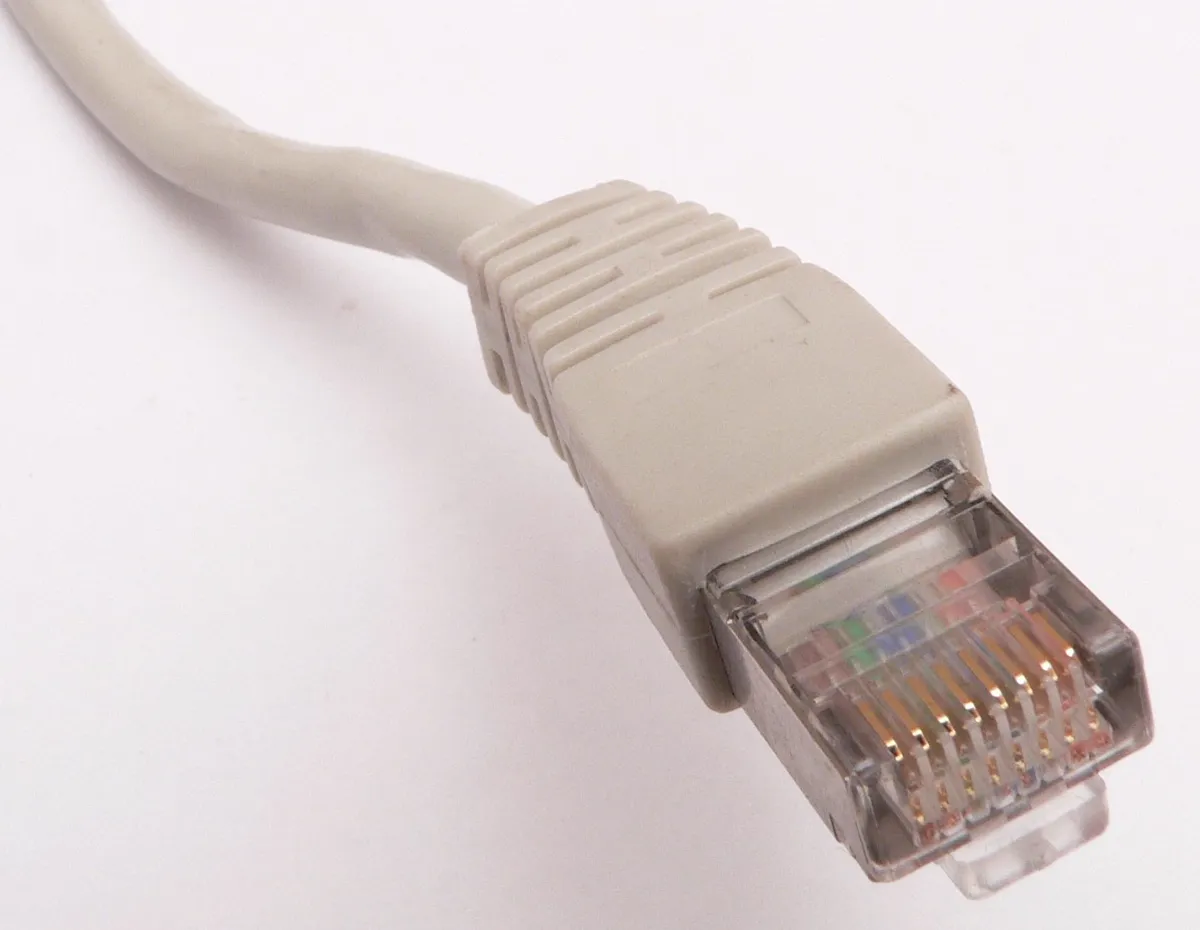
The network adapter is the hardware that sends and receives network signals, whether through a Wi-Fi radio or an Ethernet port. The driver is the translator between that hardware and the operating system. It tells the system how to send data, how to join a network, and how to handle power saving and security.
Without a working driver, the adapter is invisible to the system. The network icon may show no connections, the adapter may be missing from the settings, or the computer may report that no network hardware is installed. The hardware is present, but the system has no instructions for using it.
Drivers also carry performance and security fixes. A new driver can fix dropped connections, improve speed on a new router, or patch a vulnerability in the wireless protocol. Keeping the driver current matters, but a careless update can also break a working setup, so updates deserve a little caution.
Signs the Driver Is the Problem
The classic sign is a missing or flagged adapter in Device Manager. A yellow warning icon, an error code, or an adapter listed as unknown device all point to a driver problem. If the adapter appears and disappears when you restart, the driver is likely crashing or conflicting with another device.
Connection symptoms also point to the driver. Wi-Fi that connects but drops every few minutes, speeds far below the plan on one computer only, or a connection that fails after waking from sleep can all be driver faults. If other devices on the same network work fine, the fault is in the computer, and the driver is a prime suspect.
A driver problem often follows a system update. If the network worked yesterday and fails today after an update, the update probably replaced the driver with a version that does not suit your adapter. Rolling back the driver is the fastest fix in that case.
Reinstalling the Driver Safely
Download the driver before you remove the old one. Use another device or a wired connection to fetch the driver from the laptop or adapter manufacturer site, matched to your exact model and system version. Store the installer on the desktop so you can reach it after the old driver is gone.
Open Device Manager, expand Network Adapters, right-click the adapter, and choose Uninstall Device. If the option to delete the driver software appears, check it, so Windows does not reinstall the same broken driver. Restart the computer, and Windows will either install a fresh driver automatically or leave the adapter ready for your downloaded installer.
Install the downloaded driver and restart again. Test the connection for at least an hour, including a sleep and wake cycle, before you call the fix complete. If the connection holds, the reinstall worked. If the same fault returns at once, the problem is deeper than the driver.
Rolling Back and Updating
Roll back when the problem started after a driver update. In Device Manager, open the adapter properties, go to the Driver tab, and choose Roll Back Driver if the button is available. Restart and test. Rolling back restores the version that worked, and it is safer than hunting for a new driver.
Update when the driver is old and the network is slow or unstable. Use the manufacturer site rather than a third-party driver tool, since driver tools can install wrong or bundled software. Match the driver to your exact adapter model, and skip beta drivers unless you need a specific fix they offer.
Update the system too. Windows Update and macOS updates include network driver fixes and protocol patches. A driver that fails on an old system version may work fine after the system update. Update the system first if it is far behind, then update the driver if the problem remains.
When the Adapter Itself Fails
The adapter hardware is suspect when no driver version works, the adapter is missing even in the BIOS, or the connection fails identically on a fresh system install. A loose internal antenna cable can also kill Wi-Fi while leaving the adapter visible in the system. Both need a technician to confirm.
Test with a USB adapter. A cheap USB Wi-Fi or Ethernet adapter bypasses the internal hardware entirely. If the USB adapter connects fine, the internal adapter or its antenna is the fault. If the USB adapter fails too, the fault is in the system or the network, not the adapter.
On a laptop, an internal adapter replacement is a service job, and on some models the adapter is soldered and cannot be replaced at all. In that case, a USB adapter is a practical permanent workaround. It costs little, installs in minutes, and keeps the laptop useful without a risky repair.
Do not stop here. More drivers ideas are waiting below, beginning with Configure Graphics Card: A Simple Guide.
Related Articles:
- Configure Graphics Card: A Simple Guide
- Troubleshooting Gaming Chair BSOD: Step-by-Step Guide
- Gaming Desk Not Detected: Troubleshooting & Solutions
What is your take?
Share your experience or questions in the comments — especially if you have used this tech yourself.
Found this useful? Share it with a friend who would want to know.