
5 min read
Every SSD tracks its own health in a set of numbers called SMART data. SMART stands for Self-Monitoring, Analysis, and Reporting Technology, and it records wear, errors, temperature, and remaining life. Reading it takes a few minutes, and it tells you whether your drive is healthy, aging, or about to fail.
This guide shows how to read SSD SMART data on Windows, which numbers matter, and when the numbers mean it is time to back up and replace the drive.
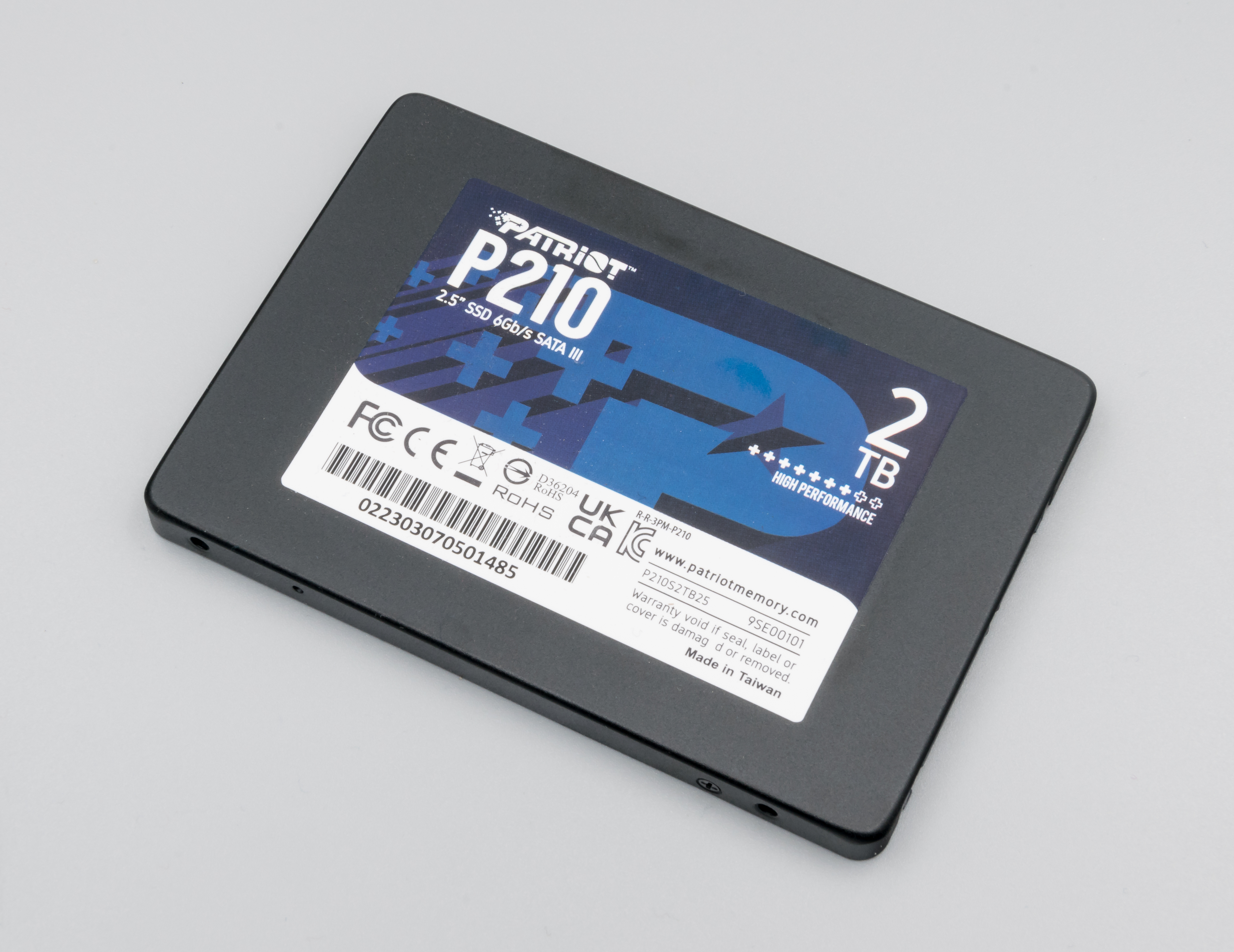
What SMART Data Measures
SMART data is a report card that the SSD writes about itself. The drive counts every write, every error, and every hour of power-on time, and it stores those counts in attributes that software can read.
The most important number for an SSD is wear, shown as percentage used or remaining life. Flash memory cells wear out a little with every write, and the drive estimates how much life is left based on total writes.
Error counters show whether the drive is struggling. Reallocated sectors, uncorrectable errors, and interface CRC errors point to problems with the flash or the connection. A healthy drive shows zero or very low counts in these fields, and any fast rise is a warning.
Temperature is the third key number. SSDs run hot under heavy load, and sustained heat shortens their life. A drive that idles near 40 degrees and peaks under 70 is normal, while one that idles above 55 needs better airflow or a heatsink.
Tools That Read SMART Data
CrystalDiskInfo is the most popular free tool for reading SMART data on Windows. It shows every attribute in plain form, plus a simple health status of Good, Caution, or Bad.
Most SSD makers offer their own tool, such as Samsung Magician, Crucial Storage Executive, or WD Dashboard. The maker tool knows your drive model best, and it often shows firmware updates and extra details like total writes in terabytes.
Windows itself offers a basic check through the command line. Open a command prompt and run the WMIC disk drive status command, which reports a simple OK or Pred Fail for each drive. This check is quick but shallow, and it will not show wear percentage or error counts.
For a quick look without installing anything, the Settings app shows drive health for NVMe drives. Open Settings, go to System, then Storage, then Disks and Volumes, and open the properties of your drive.
Reading the Key Attributes
Start with the overall health status. If the tool says Good, the drive is fine, and you can check the details at leisure. If it says Caution, read the failing attribute and back up your data.
Look at percentage used or media wearout indicator. This is the wear number, and it tells you how much of the drive rated life is gone.
Check the total host writes, usually shown in terabytes written. Compare it to the drive warranty rating, which is often 150 to 600 terabytes depending on size.
Read the error counters next. Reallocated sector count should be zero on a healthy SSD. Uncorrectable error count should also be zero. A handful of interface CRC errors usually means a loose SATA cable, not a dying drive, and reseating the cable often clears it.
Warning Signs That Need Action
The clearest warning is a health status of Caution or Bad. These statuses trigger when an attribute crosses the threshold the maker set. Do not ignore them, and do not wait to see if they go away, because SMART warnings rarely improve on their own.
A fast-rising error count is the second warning. One reallocated sector may be a fluke, but a count that grows every week means the flash is failing. Check the numbers once a month, and act when the trend is upward rather than waiting for a specific number.
Frequent crashes, disappearing files, and a drive that vanishes from Windows are hardware symptoms, not just numbers. If the drive drops out of the system, back up what you can and replace it.
Temperature warnings also need action. A drive that runs above 70 degrees under load will throttle and wear faster. Add a heatsink, improve case airflow, or move the drive away from a hot graphics card. Cooling is cheaper than a replacement drive.
What to Do With the Results
If the drive is healthy, keep using it and check again every few months. A quick SMART check every three months catches wear and errors early, and it takes less time than a coffee break. Set a calendar reminder so the check actually happens.
If the drive shows Caution, back up your data now, then plan a replacement. Clone the drive to a new SSD while it still works, because cloning a failed drive is far harder than cloning a working one. Replace the drive on your schedule, not on the failure schedule.
If the drive is under warranty and shows real wear or errors, contact the maker. Keep a screenshot of the SMART report, because the maker may ask for it. Warranty replacement is free, and a failing drive is exactly what the warranty is for.
When you replace a drive, keep the old one as a secondary drive only if it is healthy. A drive with warnings should not hold your only copy of anything. Retire it, or use it for temporary files you can afford to lose.
This is only one piece of the ssd puzzle. The articles below fill in the rest.
Related Articles:
- How PCIe 6.0 Signaling Doubles SSD Bandwidth
- How Host Memory Buffer SSDs Work Without Onboard DRAM
- SSD Cache Explained: SLC Cache, DRAM Cache, and Sustained Write Speed
What is your take?
Share your experience or questions in the comments — especially if you have used this tech yourself.
Found this useful? Share it with a friend who would want to know.