
5 min read
A laptop that runs slow after a Windows update is a common complaint, and it usually has a clear cause. The update may still be finishing background work, a driver may not match the new system files, or an old app may clash with the new version. Most laptops recover on their own within a day, but a few need a manual fix.
This guide shows how to fix a laptop that runs slow after a Windows update. You will check whether the update is still finishing, look at disk and CPU use, fix drivers, and roll back the update if nothing else works.
Wait for Post-Update Work to Finish
After a Windows update, the system runs background tasks that can slow the laptop for hours. It indexes files for search, builds a new system image, optimizes apps, and checks for more updates. These tasks run hardest in the first few hours after the restart, and they stop on their own when they finish.
Plug the laptop into the charger and leave it on for a few hours, even if you are not using it. A laptop on battery power delays many background tasks to save energy, so the slowdown can drag on for days if you only use it unplugged. A full night on the charger often clears the problem by morning.
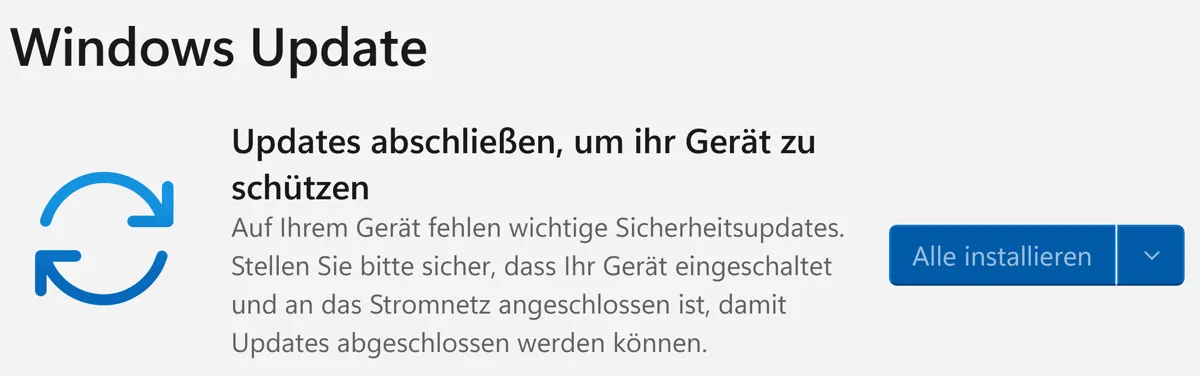
Check the Update page in Settings to see whether the update is truly finished. If it shows a pending restart, a downloading update, or a failed update that keeps retrying, the slowdown may come from an update that never completed. Restart the laptop once and let the update finish before you try other fixes.
Find What Is Using the System
Open Task Manager with Ctrl, Shift, and Esc, and sort the Processes tab by CPU and then by Disk. Look for one process using a large share of the CPU, disk, or memory for a long time.
If a single app uses most of the CPU for hours, that app is the problem, not Windows. Update the app, or uninstall and reinstall it if the update does not help. Antivirus programs are a frequent culprit after a Windows update, since their drivers must match the new system version.
If the disk sits at 100 percent with no single process standing out, the laptop may have a slow hard drive rather than a software problem. A laptop with an old spinning hard drive feels far slower after a big update than one with an SSD.
Fix Drivers After the Update
Windows updates can replace a working driver with a generic one that runs the hardware slowly. The graphics driver and the storage driver cause the most visible slowdowns. Open Device Manager, look for devices with a yellow warning icon, and update those drivers first.
Download the graphics driver from the card maker website rather than relying on Windows Update. Choose the clean install option, restart, and test the laptop. A fresh graphics driver fixes stuttering, slow window animations, and laggy video that appear right after an update.
Check the laptop maker support page for drivers matched to your exact model and the new Windows version. Maker drivers for the chipset, the touchpad, and the power management system often lag behind Windows Update, and installing the matched versions restores the speed and battery life the update took away.
Clean Up and Free Space
An update needs free disk space to work well, and a nearly full drive slows everything down. Open Settings, then System, then Storage, and check the free space on the system drive. If less than 15 percent is free, delete large files you no longer need, empty the Recycle Bin, and remove apps you do not use.
Run Disk Cleanup to remove old update files. Open Disk Cleanup, click Clean up system files, and check the boxes for Windows Update Cleanup, Temporary files, and Previous Windows installations if you do not plan to roll back. These files can take tens of gigabytes after a feature update.
Turn on Storage Sense to keep the drive clean automatically. Storage Sense deletes temporary files and empties the Recycle Bin on a schedule, so the drive does not fill up again before the next update. A laptop with room to breathe runs faster after every update, not just this one.
Roll Back the Update
If the laptop stays slow after all the fixes, roll back the update. Open Settings, then System, then Recovery, and look for the Go back option. Windows keeps the old system files for about ten days after a feature update, so act quickly if you want to use this option.
A rollback keeps your personal files but removes apps installed after the update and reverses system changes. Write down any apps you installed since the update, since you may need to install them again. Back up important files before the rollback, even though the process is designed to keep them safe.
If the Go back option is gone, use System Restore to return to a restore point from before the update. If no restore point exists, the last option is a fresh install of Windows from a USB drive. A fresh install takes longer, but it removes every trace of the bad update and gives you a clean, fast system again.
Ready for the next step? Start with PC Won't Wake from Sleep: Fixes, then browse the related guides underneath.
Reference: Windows Update — Wikipedia