
5 min read
A dual screen setup only helps if both monitors sit where your eyes and neck can relax. Two screens on factory stands eat desk space, force awkward angles, and leave one monitor too high or too far away. A monitor arm fixes the geometry by letting each screen float at the right height, distance, and tilt.
Choosing the right arm is less about brand and more about fit. You need:
- To match the arm to your monitor weight
- Your desk
- The way you work
This guide walks through the measurements and features that matter, so a dual screen setup feels comfortable through a full workday.
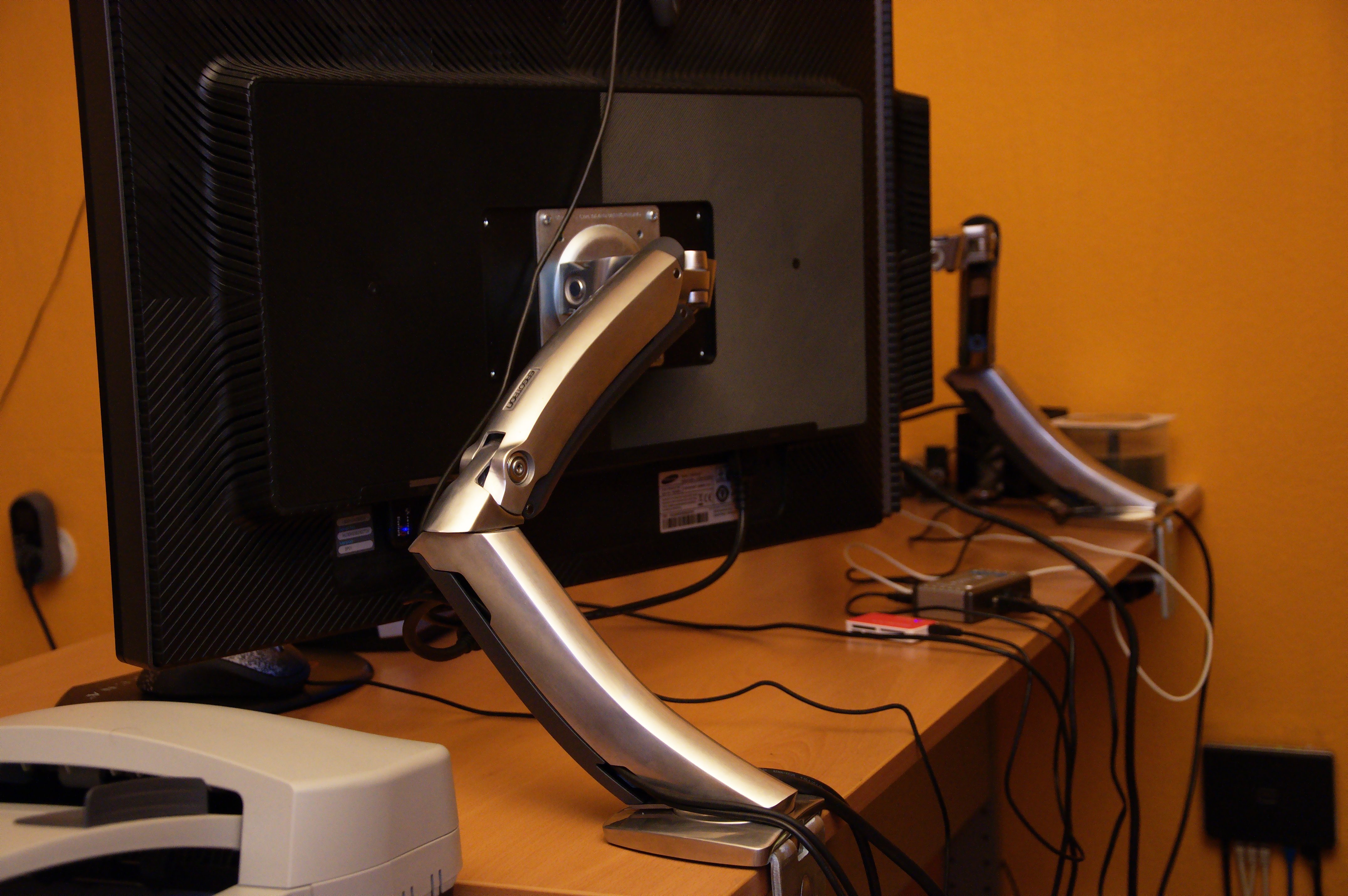
Why Your Monitor Position Matters
Your neck pays for every centimeter your monitor sits off center. When one screen is higher than the other, your head tilts all day, and the muscles on one side stay tense.
The ideal position puts the top of each screen at or just below eye level, with the screens angled slightly toward you. Your eyes should look a little downward at the center of the screen, not up.
Dual screens add a second problem: the seam between them. If the two panels sit at different heights, your eyes jump up or down every time you move between apps.
Desk space is the quiet bonus. Factory stands have wide feet that claim a large patch of desk, while an arm clamps to the back edge and frees the whole surface underneath.
What to Look for in a Monitor Arm
Start with the weight rating. Every arm lists a maximum load, and your monitor must sit well inside that range, not at the edge of it. A monitor that is too heavy for the arm will slowly droop, and you will find yourself re-tightening joints every few days.
Next, check the arm type. A simple pole mount holds screens at a fixed height on a vertical post and works well for two identical monitors.
Reach matters as much as strength. Measure how far your monitors need to extend from the desk edge and from each other. A short arm forces screens close together and can leave the outer edges out of comfortable view.
Look at the joints, not just the marketing photos. Metal joints with real bearings last longer and hold position better than plastic joints. A good arm moves smoothly when you push it and stays exactly where you leave it when you let go.
VESA Mounts and Weight Limits
Most monitors attach to arms through a VESA mount, a square pattern of four screw holes on the back of the panel. The two common sizes are 75 by 75 millimeters and 100 by 100 millimeters. Check your monitor manual or measure the hole spacing before you buy an arm.
Some monitors ship without VESA holes, especially slim consumer models and certain all-in-one designs. For those, you need a brand-specific adapter bracket, and not every model has one.
Weigh your monitor with its cables attached, because the arm carries the whole load. A bathroom scale works fine for this check.
Ultrawide monitors deserve extra care. They are heavier than they look, and their width puts more leverage on the arm joint. Choose an arm rated for ultrawide panels, and confirm the arm can hold the screen level without the outer edges sagging downward.
Setting the Height and Distance
Mount the main monitor directly in front of you, centered on your keyboard. This is the screen you look at most, and centering it keeps your head straight.
Set the height so the top bezel sits at or just below your eye level when you sit upright. If you wear bifocals or progressive lenses, lower both screens a little more, because those lenses force you to tilt your head to find the reading zone.
Distance matters as much as height. An arm length away, roughly 50 to 70 centimeters from your eyes, works for most people. If you lean forward to read small text, move the screen closer instead of leaning, or increase the text size in your operating system.
Once both screens are placed, check the alignment from your chair. The two panels should form one smooth surface with no step between them. Sit back, look left and right, and adjust until the move feels effortless, then lock the joints.
Daily Habits That Protect Your Neck
A monitor arm helps only if you keep using it. If you switch between sitting and standing, raise or lower the screens to match each posture instead of leaving them at one height.
Take a short break every half hour and look at something far away. The 20-20-20 rule works well: every 20 minutes, look at something 20 feet away for 20 seconds. This rests the focusing muscles in your eyes and gives your neck a chance to reset.
Keep the second monitor for reference material, not for work you stare at for hours. Chat windows, music controls, and monitoring dashboards belong on the side screen. Your main task stays centered, and your head stays straight for the work that fills most of the day.
If stiffness returns even with good monitor placement, check the rest of the chain. A chair that is too low, a keyboard that is too far away, and a phone cradled on your shoulder can all undo the benefit of a perfect screen position.
More ideas, fewer dead ends: the related guides below continue this thread, beginning with Setup Gaming Desk: Easy Fixes for an Optimized Workspace.
Related Articles:
- Setup Gaming Desk: Easy Fixes for an Optimized Workspace
- How to Configure Gaming Chair Best Practice for Comfort
- Best Settings for Gaming Chair for Productivity: Ergonomic Guide
What is your take?
Share your experience or questions in the comments — especially if you have used this tech yourself.
Found this useful? Share it with a friend who would want to know.