
5 min read
A dead zone is the small area around the center of a joystick where movement is ignored. The game treats a tiny stick movement as no movement at all, which stops drift and jitter when your thumb rests on the stick. Every controller uses dead zones, and every game sets them differently.
When a dead zone is too small, the character creeps on its own. When it is too large, small aiming moves do nothing and the controls feel dead. This guide explains how dead zones work and how to calibrate them in software, without opening the controller.
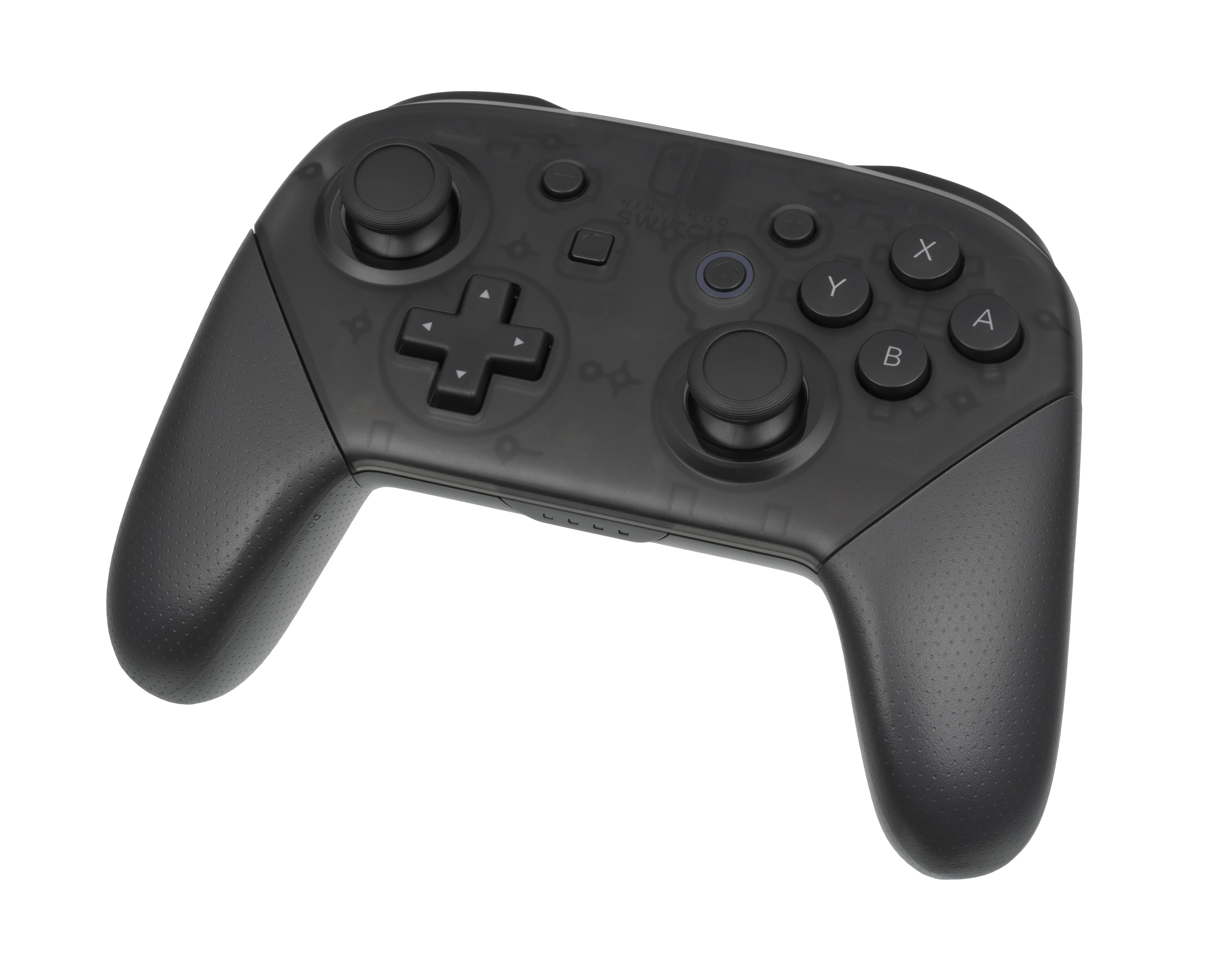
What a Dead Zone Actually Does
A joystick reports a position from its center to its edge. At rest, the stick rarely reports a perfect zero, because the sensor has noise and the spring never centers exactly. The dead zone tells the game to treat small reports near the center as zero.
The dead zone has a shape. A radial dead zone ignores movement in a circle around the center, while an axial dead zone ignores movement on each axis separately. A radial zone feels smoother for aiming, while an axial zone feels more precise for menus.
Games set a default dead zone that suits most controllers. The default is a compromise, not a perfect fit for your controller.
Dead zones also apply to triggers. A trigger dead zone ignores a light press, so a resting finger does not fire a weapon. The same idea, ignoring small inputs near rest, keeps every control calm.
Signs Your Dead Zone Is Wrong
Drift is the classic sign of a dead zone that is too small. A larger dead zone hides the drift by ignoring the small false signal from the worn stick.
Unresponsive aim is the sign of a dead zone that is too large. Small aiming corrections do nothing, and the crosshair jumps past the target when it finally moves. A large dead zone makes fine aiming feel clumsy and slow.
Jitter is a subtler sign. A slightly larger dead zone calms the jitter without hurting aim.
A stick that works in one game and drifts in another is not broken. The two games use different dead zones, so the same stick passes one and fails the other. The fix is a per-game setting, not a repair.
Calibrate in the System Settings
Start with the platform calibration tool. Consoles and PC platforms offer a stick calibration screen that shows the raw stick position as you move it. The screen reveals drift, a sticky direction, and a stick that does not reach the full edge.
Run the calibration with the stick at rest, then move it slowly in a full circle. The tool maps the true center and the true range, and the system uses that map for every game. A good calibration fixes a stick that the games read as off-center.
Check the firmware of the controller after calibration. A firmware update can fix stick reading bugs and improve the dead zone handling. Update through the official app for your platform, never through a random download.
If the platform has no calibration tool, use the game settings instead. Most games offer a dead zone slider for each stick, and the slider is the same fix applied per game. Set it game by game for the games you play most.
Tune the Dead Zone in the Game
Open the game controller settings and find the dead zone slider for the left and right sticks. Start at the default value, then raise the dead zone slowly until the drift stops. Raise it one step at a time, because the smallest value that stops drift keeps the most aim precision.
Test the change in a quiet area of the game, not in combat. Walk in a slow circle, aim at a fixed point, and make tiny corrections. The dead zone is right when the character stands still at rest and the aim follows small thumb moves.
Set the left and right sticks separately. The left stick moves the character, so it tolerates a larger dead zone. The right stick aims, so it needs a smaller dead zone for fine control. Copying one value to both sticks wastes precision.
Save the setting as a per-game profile if the game allows it. A profile keeps your tuning for each game, so a shooter and a racing game can use different dead zones. One global value rarely suits every genre.
When Software Cannot Fix It
Calibration cannot fix a stick that reports wild values. Software can hide small errors, not a broken part.
Cleaning can help a dirty stick. Lift the cap gently, blow out the dust with a manual blower, and test again. Never use canned air or liquid inside the stick housing.
A controller that drifts badly in every game after calibration needs a repair or a replacement. A replacement stick module, a warranty repair, or a new controller are the real fixes. A huge dead zone that hides the drift will ruin aiming anyway.
Buy the next controller with drift in mind. Controllers with hall-effect sticks use magnets instead of contact sensors, so they resist the wear that causes drift. The technology costs more, but it keeps the dead zone small for years. The character walks, the camera turns, or the menu scrolls with no input from you.
Your project does not have to end with this page — Fix Game Controller Battery Draining Fast shows a good way to carry it forward.
Related Articles:
- Fix Game Controller Battery Draining Fast
- Fixing Game Controller Keyboard: Troubleshooting Guide
- Game Controller Free Download: A Comprehensive Guide
What is your take?
Share your experience or questions in the comments — especially if you have used this tech yourself.
Found this useful? Share it with a friend who would want to know.