
5 min read
A display adapter is a small device that connects a computer video output to a monitor input when the two do not match. It turns HDMI into DisplayPort, USB-C into HDMI, or DisplayPort into VGA, so an old monitor and a new computer can still work together.
This guide explains what a display adapter is and when you need one. You will learn how connector types differ, how active and passive adapters work, which limits affect resolution and refresh rate, and how to choose the right adapter.
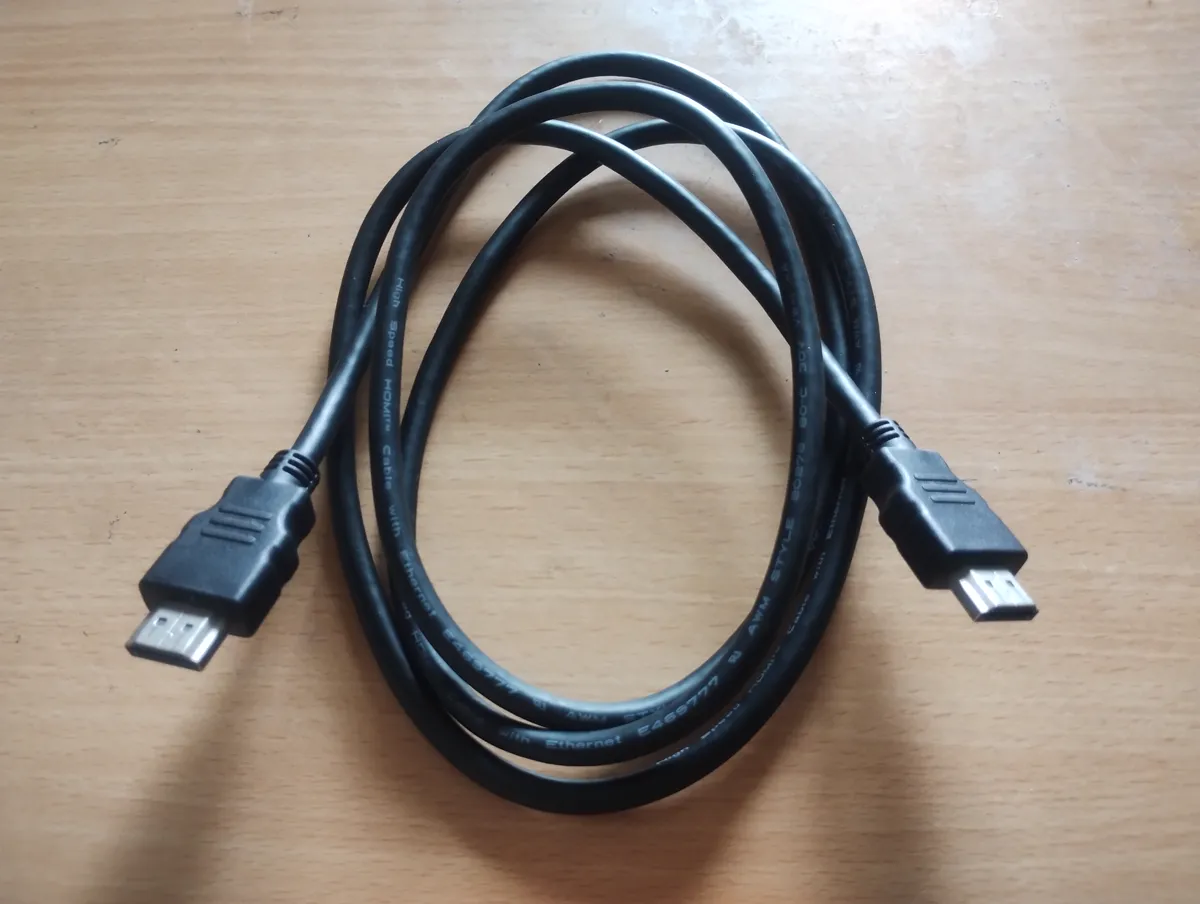
What a Display Adapter Does
A display adapter converts a video signal from one connector type to another. The computer outputs a signal on one connector, the adapter translates it, and the monitor receives a signal it understands on its own connector. Without the adapter, the two devices cannot connect at all, because the plugs do not fit and the signals differ.
Adapters also solve port shortages. A laptop with a single USB-C port can drive a monitor through a USB-C to HDMI adapter, freeing the built-in HDMI port for a second monitor. A desktop with only DisplayPort outputs can drive an HDMI monitor through an adapter, without replacing the graphics card.
An adapter is not the same as a cable with different ends. A cable with HDMI on one end and DisplayPort on the other may look like an adapter, but it only works if the devices support the conversion themselves. A true adapter contains active electronics that translate the signal, and it works with any source that outputs the right signal.
Connector Types Explained
HDMI is the most common connector on TVs and monitors. It carries video and audio on one cable, and it supports high resolutions and refresh rates on modern versions. Most laptops, consoles, and media players offer HDMI, which makes it the safe default for a living room or a shared monitor.
DisplayPort is common on desktop monitors and graphics cards. It supports higher refresh rates and daisy chaining, where one port drives several monitors. A DisplayPort output can drive an HDMI monitor through a passive adapter, because DisplayPort can output an HDMI-compatible signal, which is why these adapters are cheap.
VGA and DVI are older connectors still found on office monitors and projectors. VGA carries an analog signal and needs an active adapter to convert from digital, while DVI carries a digital signal that converts more easily.
Active vs Passive Adapters
A passive adapter only rewires the connector. It works when the source can already output the target signal, which is true for DisplayPort to HDMI on most computers. Passive adapters are cheap, small, and reliable, and they are the right choice whenever they work for your combination.
An active adapter contains a chip that converts the signal. It is needed when the source cannot output the target signal, such as HDMI to DisplayPort, or digital to analog VGA. Active adapters cost more and need power, sometimes from USB, but they work in cases where a passive adapter cannot.
Choosing the wrong type is the most common adapter mistake. A passive HDMI to DisplayPort cable will not work, because HDMI cannot output a DisplayPort signal. Check the direction of conversion: the adapter must list your source as the input and your monitor as the output. An adapter that works in the opposite direction will not help.
Resolution and Refresh Limits
Every adapter has a maximum resolution and refresh rate, and it caps the signal at that limit. A cheap adapter rated for 1080p at 60 hertz will not drive a 4K monitor at full resolution, even if the computer and monitor both support it. The picture may stay black, drop to a lower resolution, or flicker.
Check the adapter rating against your monitor. For a 4K monitor at 60 hertz, the adapter must explicitly support 4K at 60 hertz, not just 4K. For a high-refresh gaming monitor, the adapter must support the refresh rate you want, such as 144 hertz. A rating that mentions only resolution hides the refresh limit.
Cable quality matters too. A long or cheap cable between the adapter and the monitor can drop the signal at high resolutions. Keep the cable short, buy a certified cable for 4K and above, and test the setup at the target resolution before you route the cables behind the desk.
Choosing the Right Adapter
Start from the monitor input and the computer output. Write down both connectors, the monitor resolution and refresh rate, and whether you need audio. Then look for an adapter that lists your exact combination, with a rating that meets or exceeds the monitor specs. An adapter that meets the specs on paper is the right starting point.
Buy an adapter from a known brand with reviews that mention your combination. A generic adapter with no reviews may work, but it may also fail at high resolutions or die within months. A reputable adapter costs a little more and saves a return trip.
Test the adapter before you depend on it. Connect it, set the monitor to its native resolution and refresh rate, and run it for an hour. Check for flicker, dropouts, or color faults. If the picture is stable, route the cables and keep the receipt, since a good adapter should last for years.
This topic connects to more than you might expect — follow it further with the guides below, led by Troubleshooting HDMI Cable Running Slow.
Reference: Need One — Wikipedia
Related Articles:
- Troubleshooting HDMI Cable Running Slow
- HDMI Cable High Performance: A Complete Guide
- Troubleshooting Ethernet Cable Black Screen
What is your take?
Share your experience or questions in the comments — especially if you have used this tech yourself.
Found this useful? Share it with a friend who would want to know.