
5 min read
A second monitor can transform a small desk, or it can eat the whole desk and leave no room for a keyboard. The right second monitor for a small desk is not the biggest or the cheapest one. It is the one that fits the space, the viewing distance, and the work you actually do.
This guide shows how to choose a second monitor for a small desk. You will learn how size and resolution interact with distance, how stands and arms save space, how to connect two monitors cleanly, and what a workable small-desk setup looks like.
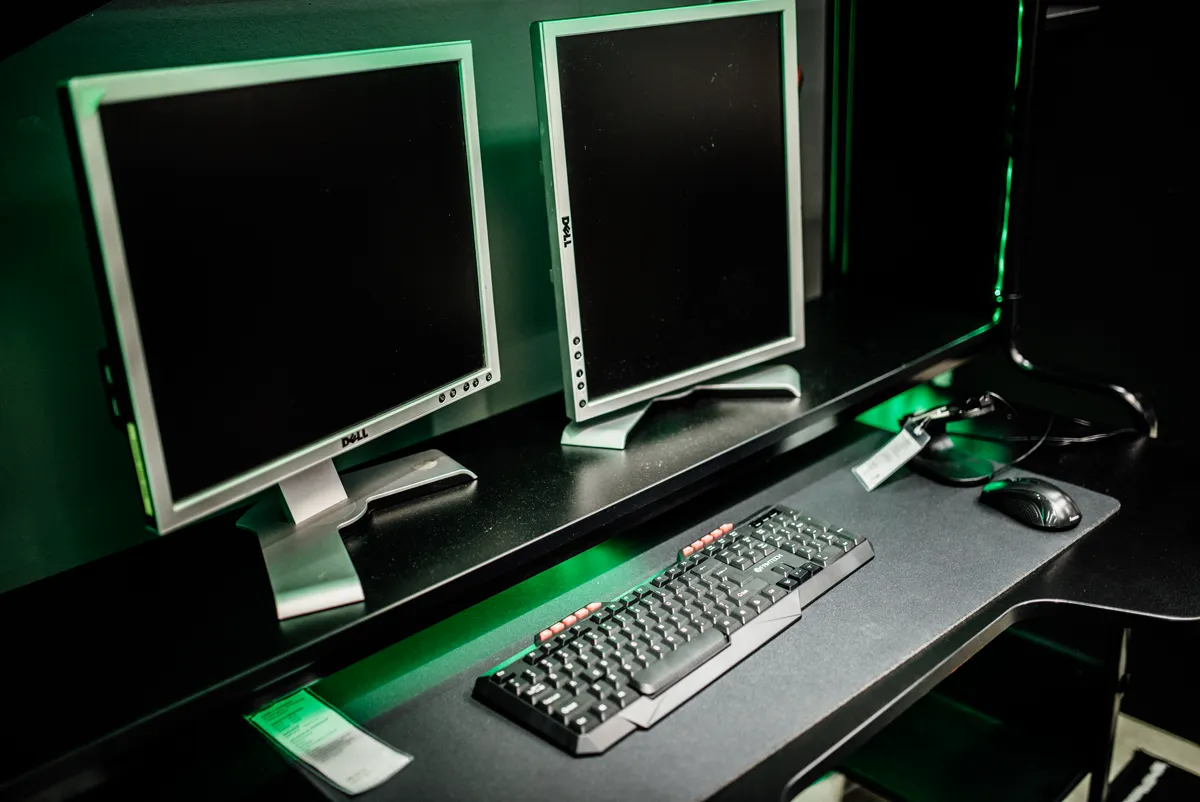
Why Desk Size Changes the Choice
A small desk limits how far you can sit from the screen, and distance decides which size feels comfortable. A 27-inch monitor at 50 centimeters fills your whole field of view and forces constant head turning. The same monitor at 80 centimeters feels spacious.
A second monitor also needs space for its stand, its cables, and your keyboard. A monitor with a wide, splayed stand can claim 30 centimeters of depth on its own. On a desk that is only 50 centimeters deep, that leaves almost no room for typing.
Weight and balance matter too. A small desk may wobble under a heavy monitor on a clamp mount, and a narrow desk can tip if the monitor hangs past the edge. Check the desk depth, the clamp space, and the weight rating before you buy the monitor or the arm.
Size, Resolution, and Viewing Distance
For a desk depth of 50 to 60 centimeters, a 21 to 24-inch monitor is the sweet spot for a second screen. It shows a full document or chat window without forcing head turns, and it leaves room for the main monitor. A 27-inch second monitor works only if you sit at least 70 centimeters away or use it in portrait mode.
Resolution should match the main monitor if you drag windows between screens. A 1080p second monitor next to a 1440p main monitor makes text and windows jump in size as they cross the border, which is tiring.
Consider a portrait second monitor for reading. A 24-inch monitor turned vertical shows a full page of a document, a long chat thread, or a tall code file. Portrait mode uses less desk width than landscape and suits a small desk well, though it needs a stand or arm that rotates.
Stands, Arms, and Mounting
A monitor arm is the best space saver for a small desk. A clamp arm lifts the monitor off the desk, frees the space underneath for a keyboard or notebook, and lets you push the monitor back against the wall. A dual arm holds both monitors on one clamp, which saves even more desk space.
Check the arm weight and size ratings. A light arm that sags under a heavy monitor is worse than a stand, since the monitor drifts during the day. Look for an arm rated above your monitor weight, with a clamp that fits your desk thickness and a grommet option if your desk has a cable hole.
If you cannot use an arm, choose a monitor with a small-footprint stand. A central pedestal stand uses less depth than wide splayed feet. A monitor with a 100 by 100 VESA mount keeps the arm option open later, so you can add an arm when the budget allows.
Ports, Cables, and Daisy Chaining
Check your computer ports before you buy. A laptop with one HDMI port needs a USB-C hub, a docking station, or a monitor with daisy chaining to run two external screens. A desktop with two video outputs can run two monitors directly.
Daisy chaining, or DisplayPort MST, lets you connect the second monitor to the first monitor instead of to the computer. It works only if the first monitor and the computer support DisplayPort output, and it can limit refresh rates at high resolutions.
Plan the cable run. Measure the distance from the computer to each monitor, add slack for the arm movement, and buy cables long enough to route behind the desk. Short cables that pull tight will disconnect when you adjust the arm. A cable clip or a small tray under the desk keeps the run tidy and out of the way.
A Small-Desk Setup That Works
Put the main monitor centered in front of you, and the second monitor to the side, angled slightly toward you. Keep the tops of both screens at or just below eye level, so your neck stays neutral. The second monitor should hold reference material, chat, or music, while the main monitor holds the work you type into.
Match brightness and color temperature between the two screens. Two monitors at very different brightness levels strain the eyes as you look back and forth. Set both to the same brightness, and use the same color preset if the monitors offer one. A small bias light behind the monitors reduces eye strain in a dark room.
Test the setup for a week before you finalize it. Move the second monitor between landscape and portrait, try it on each side, and note which layout feels natural. A second monitor should fade into your workflow, not demand attention. If you keep turning your head to read it, it is too far, too big, or showing the wrong content.
There is plenty more to try. The list below leads off with What Is a Monitor Backlight Bleed and How It Differs From IPS Glow — a good place to continue.
Reference: Second monitor — Wikipedia
Related Articles:
- What Is a Monitor Backlight Bleed and How It Differs From IPS Glow
- Ultrawide Monitors for Work: Split Screen, Productivity, and Desk Space
- Monitor Brightness and Contrast Explained: Settings That Reduce Eye Fatigue
What is your take?
Share your experience or questions in the comments — especially if you have used this tech yourself.
Found this useful? Share it with a friend who would want to know.