
5 min read
A USB drive formatted for one system does not always work on the other. A drive that Windows reads fine may be read-only on a Mac, and a Mac-formatted drive may not appear on Windows at all. The fix is choosing a file system both systems understand before you copy a single file.
This guide explains the file systems that work across Windows and Mac, how to format a drive for both, and which format to pick for your file sizes.
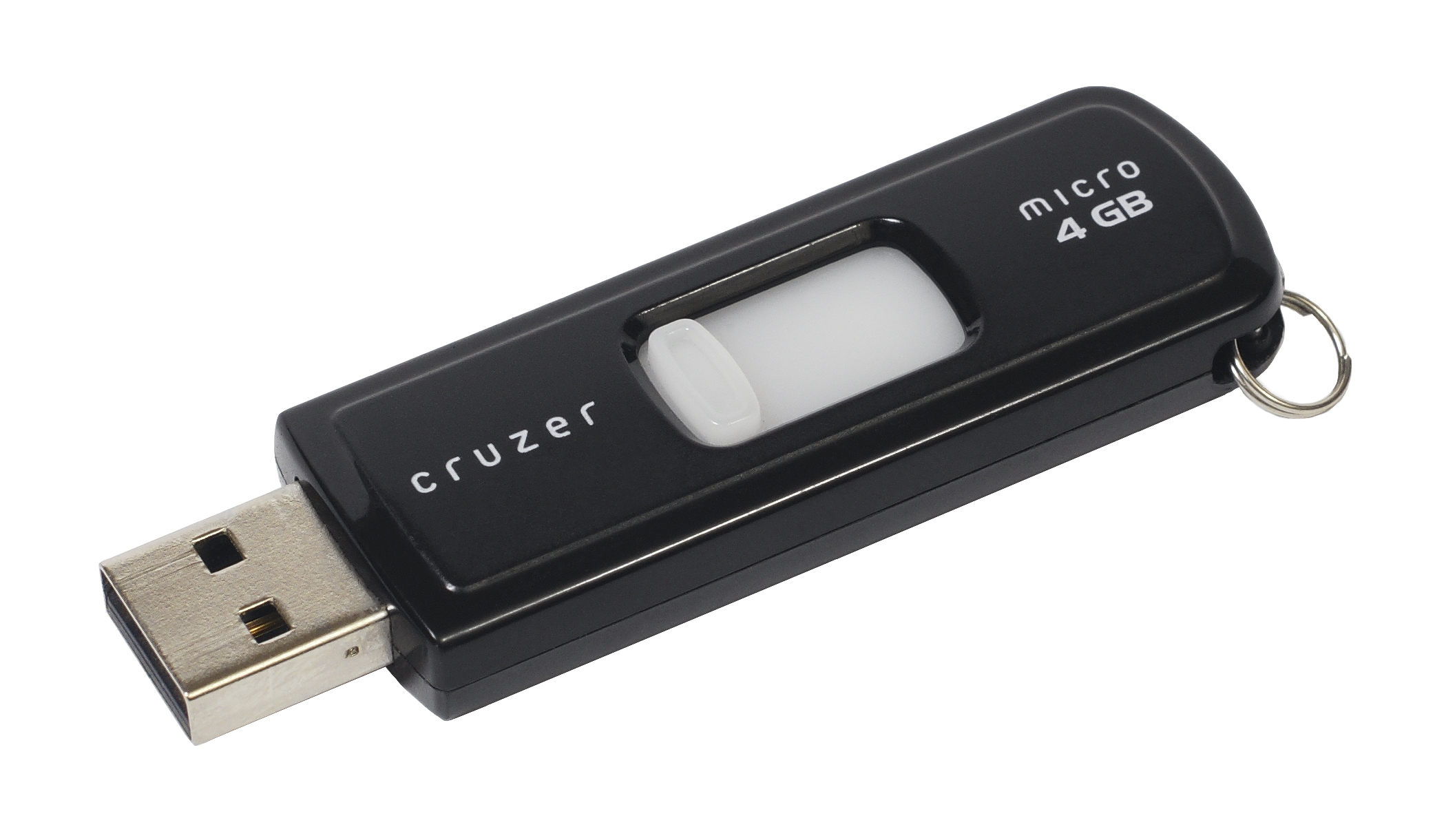
File Systems That Both Systems Read
FAT32 is the oldest format both systems read, and it works everywhere, including:
- TVs
- Cars
- Game consoles
Its limit is a maximum file size of 4 gigabytes, which rules it out for large videos, disk images, and big backups. Use FAT32 only for small files on a drive that must work with old devices.
exFAT is the modern answer for a shared drive. Windows and Mac both read and write exFAT, and it has no practical file size limit.
NTFS is the Windows native format, and Macs can read it but cannot write to it without extra software. A drive formatted NTFS is fine when it mostly lives on Windows, but it frustrates a Mac user who needs to save files back to it.
APFS and Mac OS Extended are Mac formats that Windows cannot read without extra software. Use them only for drives that stay on Macs. A shared drive should never use a Mac-only or Windows-only format.
Choosing Between exFAT and FAT32
Choose exFAT when the drive will carry files larger than 4 gigabytes. Video projects, system backups, and large installers all exceed the FAT32 limit, and a failed copy halfway through a 10 gigabyte file wastes real time. exFAT removes the limit entirely.
Choose FAT32 when the drive must work with old hardware. Some car stereos, older TVs, and embedded devices only understand FAT32. If the drive target is an old device, FAT32 is the safe choice, and small files fit under its limit anyway.
Consider reliability as well. exFAT has no journaling, which means a drive pulled out mid-write can lose data. Always eject the drive properly on both systems, and never yank it out during a copy. FAT32 has the same weakness, so safe ejection matters for both.
For a drive shared between two modern computers, exFAT wins on every count that matters. It handles big files, both systems write to it, and every modern device supports it. Pick exFAT unless you have a specific old device that needs FAT32.
Formatting on Windows
Back up the drive contents first, because formatting erases everything. Copy any files you want to keep to another drive or to the cloud. Formatting is not reversible, and recovery software may not save files from a freshly formatted drive.
Open File Explorer, right-click the USB drive, and choose Format. In the dialog, pick exFAT as the file system, give the drive a short name, and leave the allocation unit size at the default.
Click Start and wait for the format to finish. A quick format takes seconds, while a full format takes minutes and checks every sector. For a healthy drive, quick format is enough, and you can start copying files right away.
Verify the format by copying a test file larger than 4 gigabytes if you have one. If the copy succeeds, the drive is exFAT and ready. If the copy fails with a file too large error, the drive is still FAT32, and you should format it again with exFAT selected.
Formatting on a Mac
Back up the drive first, for the same reason as on Windows. Formatting on a Mac erases the drive completely, and there is no undo. Move anything important off the drive before you open Disk Utility.
Open Disk Utility from Applications, then Utilities. Select the USB drive in the sidebar, making sure you pick the drive itself and not a volume under it.
Click Erase and wait for the process to finish. Disk Utility formats the drive and mounts it again automatically. The drive then appears on the desktop and in Finder, ready for files from either system.
Test the drive on both computers before you trust it. Copy a file from the Mac to the drive, plug the drive into a Windows PC, and confirm the file opens. Then copy a file back. A two-way test proves the drive works in both directions, not just one.
Keeping a Shared Drive Healthy
Always eject the drive before unplugging it. On Windows, use the Safely Remove Hardware icon, and on a Mac, drag the drive to the trash or click Eject.
Keep the drive formatted exFAT even when it mostly lives on one system. Reformatting to a native format for a small speed gain breaks compatibility the next time the drive visits the other system.
Run a disk check if the drive starts behaving strangely. On Windows, right-click the drive and run Error checking. On a Mac, use First Aid in Disk Utility. Both tools find and fix file system errors before they turn into lost files.
Replace a drive that shows frequent errors. A USB drive that needs constant repairs is wearing out, and no format will fix failing flash memory. Copy the files off while you still can, and retire the drive before it fails completely.
If you came for usb-flash-drive, stay a little longer — the picks below are closely related, starting with USB Flash Drive Guide: Everything You Need to Know.
Related Articles:
- USB Flash Drive Guide: Everything You Need to Know
- USB Flash Drive Guide: Tips for Using Step by Step
- Budget USB Flash Drive Installation: Complete Setup & Optimization
What is your take?
Share your experience or questions in the comments — especially if you have used this tech yourself.
Found this useful? Share it with a friend who would want to know.