
5 min read
A password alone is not enough anymore. Passwords leak in breaches, get guessed, and get reused across sites. Two-factor authentication adds a second check, usually a code on your phone, so a stolen password alone cannot open your account.
Setting it up on every account sounds like a weekend project, but it is really a series of five-minute jobs. This guide shows the order to do them in, and which method to pick for each account.
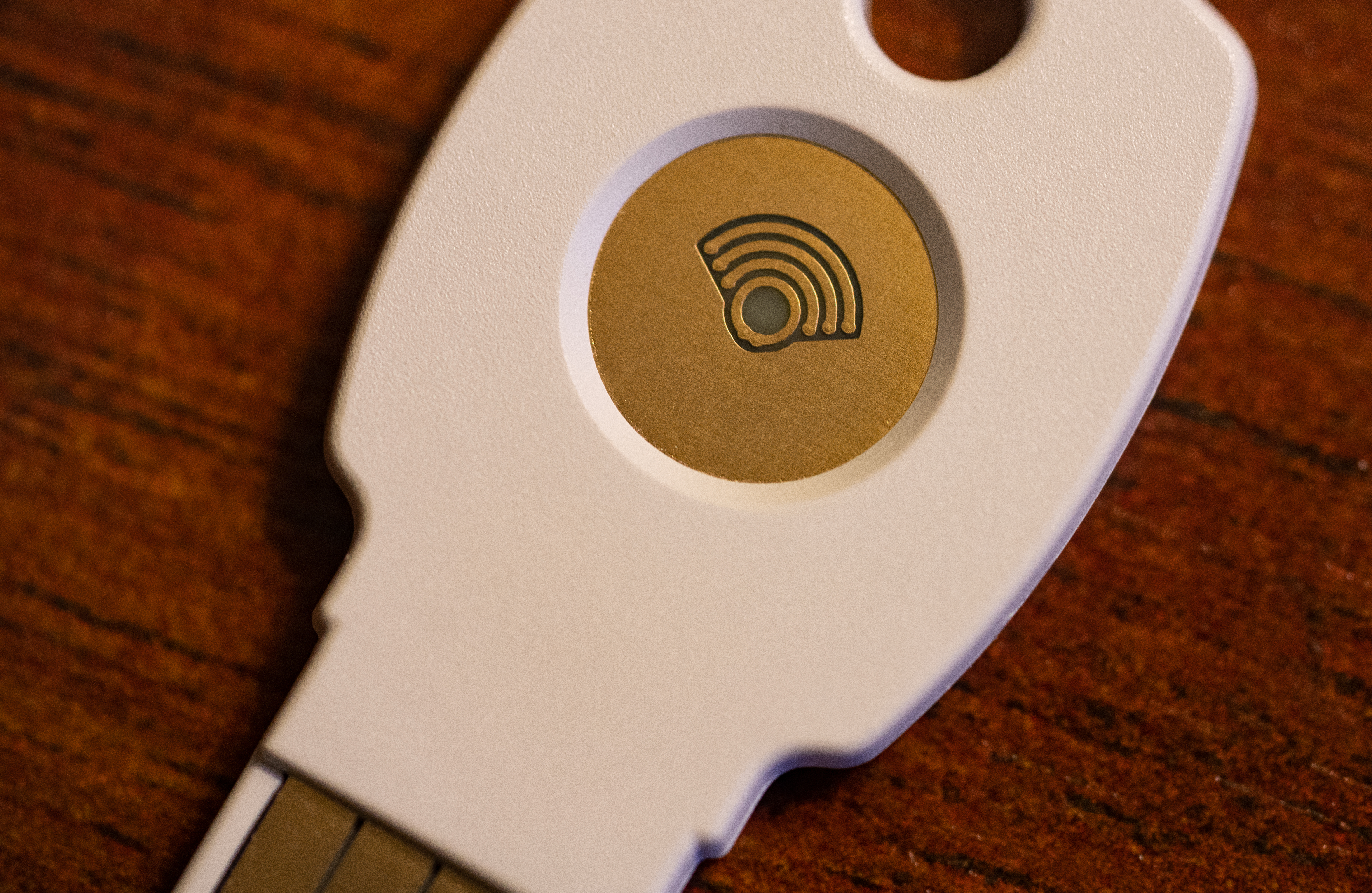
How Two-Factor Authentication Works
Two-factor authentication asks for two things: something you know, and something you have. The password is the first factor, and a code from your phone or a security key is the second. An attacker needs both, and the second factor is much harder to steal.
The code changes every thirty seconds, so a code captured today is useless tomorrow. That time limit is what makes two-factor authentication strong even against attackers who watch your traffic. A password, once stolen, works until you change it.
Not all second factors are equal. A hardware security key is strongest, an authenticator app is next, and SMS codes are weakest because phone numbers can be hijacked. Use the strongest method each account offers.
Think of two-factor authentication as a second lock on the same door. A thief who copies your key still faces the second lock, and most thieves move on to an easier target. The second lock costs seconds of your time and blocks the most common attacks.
Start With Email and Password Manager
Start with your email, because email is the key to every other account. An attacker who controls your email can reset your password almost anywhere. Turn on two-factor authentication for your email first, before anything else.
Next, secure your password manager. The manager holds every password you own, so it deserves the strongest protection you can give it. A hardware security key is ideal here, with an authenticator app as the backup method.
These two accounts protect all the rest. If email and the password manager are locked down, a breach at one site stays at that site instead of spreading to every account you own.
Do not skip two-factor authentication on accounts that feel unimportant. Attackers use small accounts to learn about you, reset passwords, and build a picture for a bigger attack. Every account with a password deserves the second factor.
Use an Authenticator App, Not SMS
An authenticator app generates codes on your phone without a network connection. Install a well-known app like Google Authenticator, Authy, or Microsoft Authenticator, then scan the QR code each site shows during setup.
Authenticator codes cannot be intercepted like SMS codes, and they work in airplane mode. They are the right default for most accounts, from social media to banking. Set up the app once, and each new account takes under a minute.
Save the backup codes each site gives you during setup. Print them or store them in your password manager, and treat them like spare keys. If you lose your phone, the backup codes are the fastest way back into your accounts.
An authenticator app works without a signal, which makes it reliable while traveling. SMS codes fail when you have no reception, but the app generates codes offline. Travel is when you need account access most, so the offline option matters.
Work Through Accounts in Priority Order
After email and the password manager, secure banking and payment accounts. These hold money directly, and a breach costs cash rather than just embarrassment. Use the strongest method the bank offers, and prefer an app code over SMS where the bank allows it.
Next come social media, shopping, and cloud storage. These hold your photos, messages, and payment details. A hacked social account can also impersonate you to your friends, which makes it a tool for attacking other people.
Finish with everything else, including forums and hobby sites. A breach at a small site can still expose a password you reused elsewhere. If an account is not worth protecting, delete it instead of leaving it with a weak password.
Work through the list in one sitting if you can, because a half-finished rollout leaves the weakest accounts exposed. An hour of setup covers a lifetime of accounts, and the effort pays off the first time a password leaks.
Keep a Recovery Plan
Two-factor authentication can lock you out if you lose your phone and have no backup. Register a second method on important accounts, such as a backup authenticator on a second device or a printed set of recovery codes.
Move your authenticator to a new phone before you wipe the old one. Authenticator apps do not transfer automatically on every platform, and wiping the old phone first can strand you. Transfer, verify, then wipe, in that order.
Review your two-factor settings once a year. Remove old phone numbers, drop methods you no longer use, and confirm the recovery codes still work. A yearly check keeps the system strong without turning security into a chore.
Store recovery codes in two places, such as a printed copy at home and a copy in your password manager. One copy can be lost, but two copies in different places survive a fire, a theft, or a dead phone.
Your project does not have to end with this page — VPN for Productivity: Boost Your Workflow shows a good way to carry it forward.
Related Articles:
- VPN for Productivity: Boost Your Workflow
- Firewall Installation Guide: A Beginner's Approach
- Repair Adobe Premiere Pro Hacked: Easy Fixes
What is your take?
Share your experience or questions in the comments — especially if you have used this tech yourself.
Found this useful? Share it with a friend who would want to know.