
5 min read
USB4 is the newest version of the USB standard, and it is the first version built on the same technology as Thunderbolt. That shared foundation makes USB4 faster and more capable than any USB version before it, but it also makes the choice between USB4 and Thunderbolt confusing. The two standards look alike and share the same connector.
The good news is that the differences are practical, not mysterious. USB4 and Thunderbolt differ in guaranteed speed, docking features, and price, and the right choice depends on what you plug in. This guide explains both standards in plain terms.
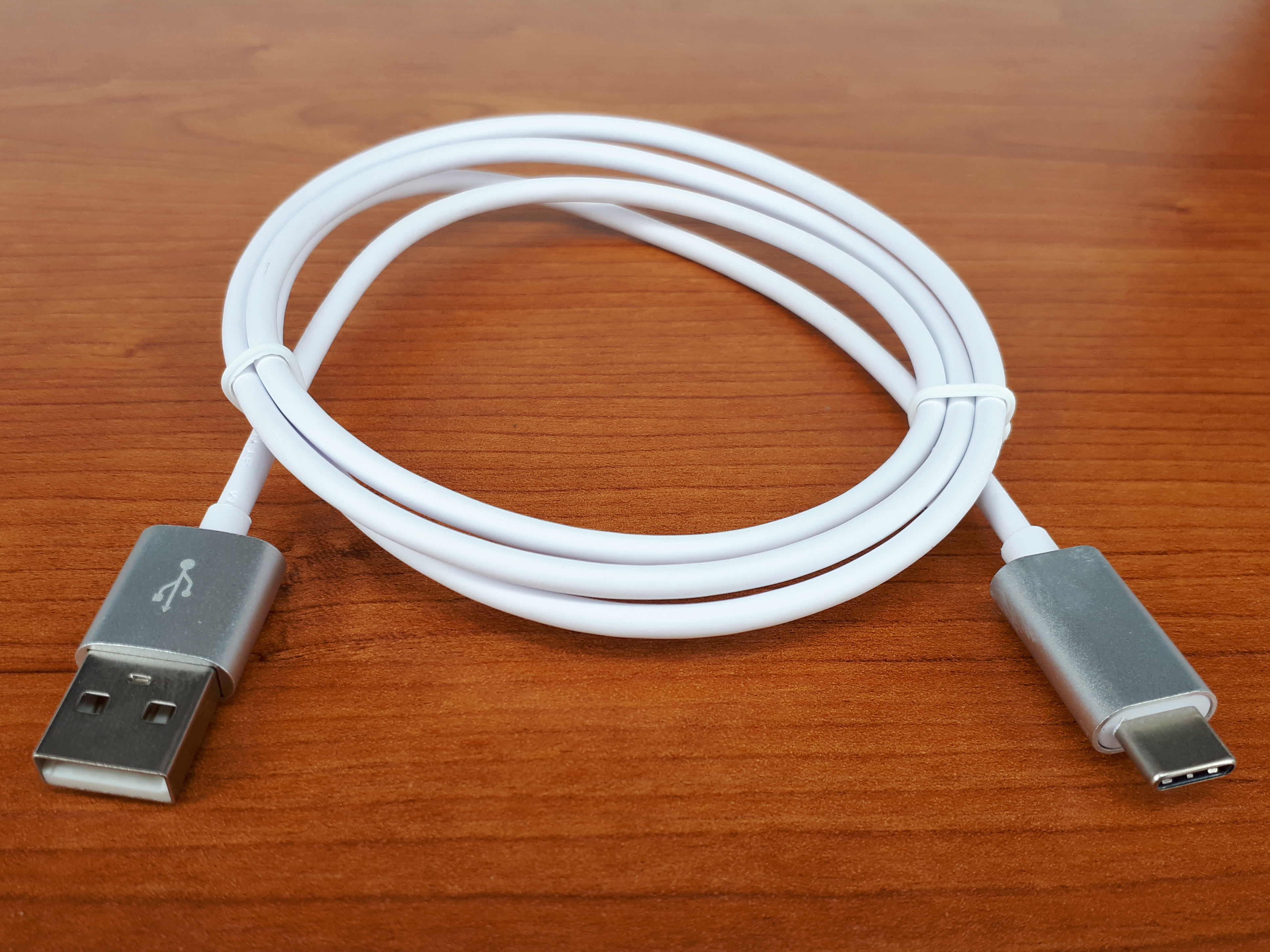
What USB4 Actually Is
USB4 is a specification for data transfer over a USB-C connector. It doubles the top speed of USB 3.2 to 40 gigabits per second, and it can carry video, data, and power over a single cable. The USB-C connector is the same small reversible plug used by modern phones and laptops.
The key change in USB4 is that it borrows the Thunderbolt protocol. Intel gave the Thunderbolt 3 specification to the USB standards group, which used it as the base for USB4. That is why USB4 ports can do things older USB ports could not, such as drive two 4K monitors from one port.
USB4 is backward compatible with older USB devices. A USB 3 flash drive or a USB 2 keyboard works in a USB4 port, just at its own slower speed. You do not need to replace your existing accessories to use a USB4 laptop.
USB4 Speed Tiers Explained
USB4 comes in two speed tiers, and the difference matters when you shop. USB4 20 delivers 20 gigabits per second, while USB4 40 delivers 40 gigabits per second. Both use the same connector, and the box may not make the tier obvious.
The 20-gigabit tier is roughly twice as fast as the fastest USB 3.2 port. It is plenty for external drives, docks, and a single 4K monitor. The 40-gigabit tier adds headroom for fast external SSDs, dual monitors, and high-speed docking stations.
Check the product specifications rather than the logo on the box. A laptop that says USB4 without a speed number may be either tier. The full specification sheet lists the exact speed, and that number is what you should trust.
How USB4 compares with Thunderbolt in real use depends on the device at the other end of the cable. A fast external drive reaches similar speeds on both, while a dual-monitor dock may behave differently.
What Thunderbolt Adds
Thunderbolt 4 guarantees 40 gigabits per second on every port, while USB4 only guarantees it on the faster tier. That guarantee is the main practical difference for most buyers. A Thunderbolt 4 port always runs at full speed, and a USB4 port might not.
Thunderbolt 4 also guarantees dual 4K monitor support and stricter power delivery rules. USB4 can support dual monitors, but it is not required to. If you run two external monitors from one dock, Thunderbolt is the safer choice because the feature is guaranteed rather than optional.
Thunderbolt 5 raises the ceiling further, with up to 80 gigabits per second of bandwidth. It is still new and appears mainly on premium laptops and docks. For most people in 2026, Thunderbolt 4 and USB4 40 cover every realistic need.
Cables, Docks, and Compatibility
USB4 and Thunderbolt share the USB-C connector, and most Thunderbolt cables work in USB4 ports. A cable rated for Thunderbolt 4 will carry USB4 signals at full speed, which makes Thunderbolt cables a safe universal purchase. The reverse is not always true, because a basic USB-C cable may only support slower speeds.
Docks are where compatibility gets tricky. A Thunderbolt dock works best with a Thunderbolt port, and some of its features may drop to USB4 behavior on a USB4 port. Read the dock manual before buying, and look for a line that says the dock is certified for your port type.
Charging works across both standards, because both use USB Power Delivery. A USB4 laptop charges from a Thunderbolt dock, and a Thunderbolt laptop charges from a USB4 charger. The wattage matters more than the standard, so match the charger to your laptop power rating.
When you compare cables, look for the certification label rather than the price. A certified Thunderbolt cable guarantees full USB4 speed, while a cheap unbranded cable may only reach USB 3 speeds.
Which One Should You Buy
Choose Thunderbolt if you run a demanding desk setup with dual monitors, a fast external SSD, and a dock. The guarantees mean everything works the first time, and you will not need to check which features are optional. The price premium is worth it for a workstation that must just work.
Choose USB4 if you want fast ports without paying the Thunderbolt premium. A USB4 40 port handles a single monitor, a fast drive, and a dock for most people. The savings are real, and the everyday experience is nearly identical.
Either way, check the actual port on the laptop you buy. A USB-C port is not automatically USB4, and a fast-looking port may be an older USB 3.2 port in disguise. The specification sheet, not the shape of the port, tells you what you are getting.
The best way to learn usb is to keep going. Your next read is right below: Configure External Hard Drive: A Complete Guide.
Related Articles:
- Configure External Hard Drive: A Complete Guide
- Fixing External Hard Drive Crashing: Easy Fixes
- RGB Mousepad Shutdown: Troubleshooting Gaming Issues
What is your take?
Share your experience or questions in the comments — especially if you have used this tech yourself.
Found this useful? Share it with a friend who would want to know.