
5 min read
Most video calls look bad because of lighting, not because of the webcam. A cheap webcam in good light beats an expensive webcam in a dark room. The fix costs little: put the light in the right place, keep the background simple, and let the camera do its job.
This guide shows a lighting setup that uses a window, a desk lamp, or one cheap panel. It covers placement, color, and the webcam settings that make the biggest difference on a call.
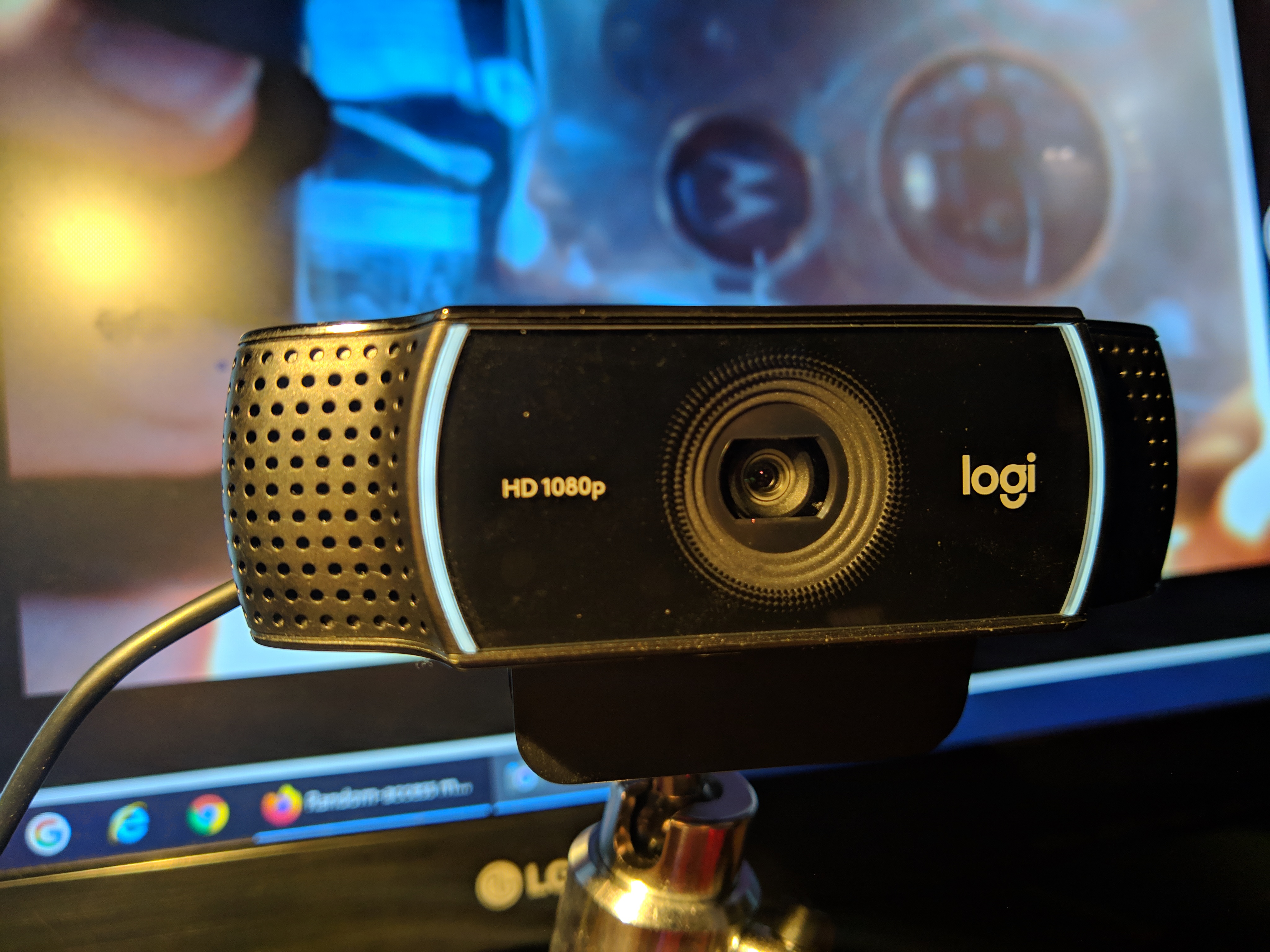
Face the Light, Not the Window
The single most important rule is to face the light source. When the light falls on your face, the webcam sees a clear, bright image. When the light sits behind you, the webcam sees a dark silhouette and a bright background, which no setting can fix.
A window is the best free light. Sit facing the window, with the webcam between you and the window. Morning light is soft and flattering, while direct midday sun can be harsh, so a thin curtain helps on bright days.
If the window is behind you, move the desk. A desk move costs nothing and changes the call more than any gear purchase. When moving is impossible, close the curtains and use a lamp in front of you instead.
Test the setup with the actual call app. If your face is bright and the background is calm, the lighting is right.
One Lamp Done Right
A single desk lamp can replace a window if you place it well. Put the lamp just behind the webcam, aimed at your face, about an arm length away. The light should fall on your face from slightly above eye level, which looks natural.
Use a lamp with a shade that spreads the light. A bare bulb creates harsh shadows and bright spots on the forehead. A shaded lamp, or a lamp bounced off a white wall, gives soft light that flatters the face.
Match the lamp color to daylight. A bulb near 5000 Kelvin looks like daylight and keeps skin tones natural. A warm yellow bulb makes the image look orange, and a cold blue bulb makes the skin look pale.
Avoid a lamp that points up from below the chin. Light from below creates horror-movie shadows and tired eyes. Light from slightly above is how the sun lights a face, and the camera expects it.
Background and Framing
Keep the background simple and uncluttered. A plain wall, a shelf with a few items, or a tidy bookcase looks professional. A messy room behind you pulls attention away from your face and onto the clutter.
Raise the webcam to eye level. A laptop camera that looks up from below shows the ceiling and the chin, which is the least flattering angle. A stack of books or a small stand lifts the camera to the right height.
Frame from the chest up, with a little space above the head. It also keeps the camera focused on you instead of on the background.
Check the background in the camera preview before every important call. A preview check takes five seconds and catches the laundry, the open door, or the bright window that would ruin the call.
Webcam Settings That Matter
Turn off auto-exposure tricks that make the image jump. If the webcam brightens and darkens as you move, lock the exposure or reduce the room contrast. A stable image looks more professional than a bright image that flickers.
Set the resolution to 720p for a normal call. Higher resolutions need more light and more bandwidth, and most call apps shrink the video anyway. A sharp 720p image in good light beats a noisy 1080p image in dim light.
Turn on the webcam auto-focus if it exists, and sit still for a second while it locks. A camera that hunts for focus during the call is distracting. If focus keeps hunting, add more light, since low light is the usual cause.
Update the webcam driver or the app that controls it. A driver update can fix color problems and exposure bugs. If the image still looks wrong, test the webcam in another app to see whether the problem is the camera or the call app.
A Cheap Kit That Covers Everything
A basic kit is one small LED panel, one small tripod, and a phone holder if you use a phone as a camera. The panel costs less than a dinner out, and the tripod holds it at the right height behind the webcam.
Place the panel behind the webcam, aimed at your face, and set the brightness so your face looks bright without white spots on the forehead. A dimmer or a layer of baking paper over the panel softens the light if it is too harsh.
Add a second light only if one side of the face stays dark. A small fill light on the opposite side, at half brightness, balances the face. Two lights are a luxury, not a need, and one good light beats two bad ones.
Rehearse once with a recorded clip. Record ten seconds, watch it back, and fix what you see. A single rehearsal teaches you more about your lighting than any guide, because it shows your face, your room, and your camera together. The whole setup fits a small budget and uses gear you may already own.