
5 min read
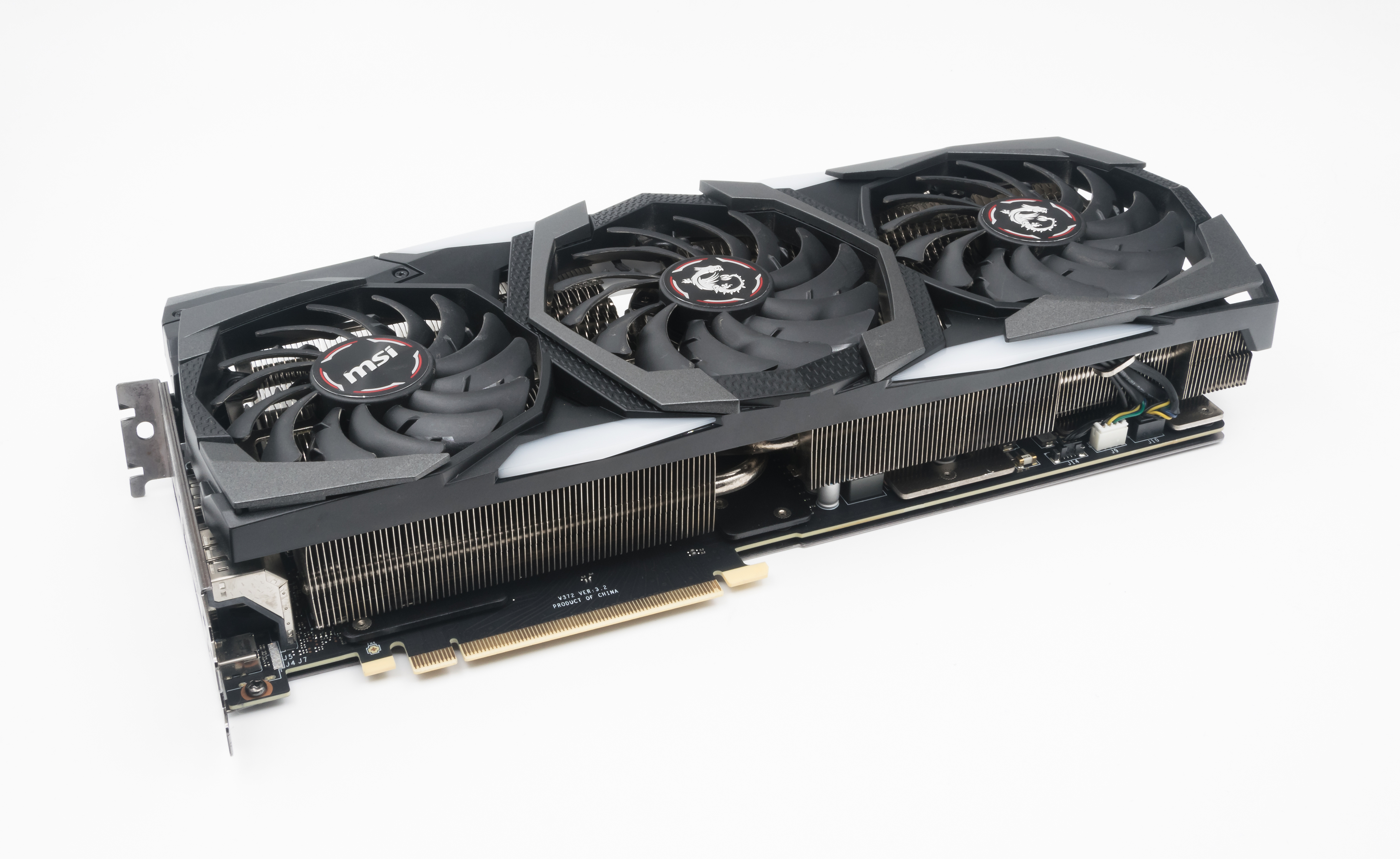
GPU undervolting means giving your graphics card a little less voltage while keeping its speed the same. The card runs cooler, the fans spin slower, and the frame rate, measured in FPS, stays nearly the same. It is one of the safest tuning tricks in PC gaming.
Most graphics cards ship with more voltage than they need. The factory setting covers every chip, including the weakest ones, so a good chip gets extra voltage it does not use. Undervolting removes that surplus on your specific card, which cuts heat without cutting speed.
Why Less Voltage Means Less Heat
Heat in a chip grows with voltage and current. When you lower the voltage a little, the power draw falls, and the heat falls with it. A card that ran at 80 degrees may settle near 70 degrees after a careful undervolt, with the same clock speed.
Lower heat also means quieter fans. Fans spin based on temperature, so a cooler card needs less airflow. Many users undervolt mainly for silence, and the lower temperature is a bonus that extends the life of the card.
Undervolting is not overclocking. You are not asking the card to run faster than its rated speed. You are asking it to run at the same speed on less power, which is a gentler change than pushing the card past its limits.
Every card is different. That is why undervolting is a per-card process, and why copying another person settings exactly may not work on your card.
What You Need Before You Start
You need a tuning tool from your graphics card maker, such as the official tuning app for your card brand.
You also need a stress test and a monitoring tool. A benchmark that reports FPS helps you confirm that performance did not drop.
Save your current settings first. Most tuning apps let you save a profile, and you should save the stock profile before changing anything. A saved stock profile gives you a one-click way back if the new settings misbehave.
Close other programs before testing. Background downloads, video playback, and antivirus scans can distort the results.
The Step by Step Undervolt
Open the tuning app and find the voltage-frequency curve, which maps clock speed to voltage. The curve shows how much voltage the card uses at each speed step. Your goal is to lower the voltage at your target speed without lowering the speed itself.
Pick a target voltage slightly below stock, for example 25 to 50 millivolts lower, and flatten the curve at your target clock speed. The exact numbers depend on your card, so move in small steps instead of jumping to a low voltage at once.
Apply the change, then run a stress test for at least fifteen minutes. Watch for crashes, flicker, driver resets, or strange artifacts on screen. Any of these signs means the voltage is too low, so raise it a small step and test again.
Repeat the loop until you find the lowest voltage that passes the stress test. Then run a real game for an hour, because games stress the card differently than a synthetic test. A setting that passes a benchmark can still fail in a long gaming session.
Testing for Stability
Stability testing must cover more than one workload. A card that is stable in one game can crash in another, because different games load the card in different ways. Test with at least two demanding games plus a stress test.
Watch the full picture, not just crashes. A driver reset, a black screen for a second, or a sudden FPS drop all count as instability. A stable undervolt shows no glitches across a full evening of play.
Give the card time to heat up. A quick five-minute test can pass while a one-hour session fails, because heat builds slowly in the case. Test in the same room conditions you game in, with the case closed as usual.
If you see instability weeks later, raise the voltage one small step. A card that was barely stable can fail when the room gets warmer in summer or when a new driver changes the load. A small safety margin beats the lowest possible voltage.
When Undervolting Is Not the Answer
Undervolting cannot fix a broken card. If the card crashes at stock settings, artifacts appear in every game, or the fans rattle, the problem is hardware or drivers, not voltage. Fix the real problem first, then tune.
It also cannot fix a card that is too slow for the game. If FPS is low because the card is weak for the settings you chose, lower the game settings or upgrade the card. Undervolting keeps FPS, it does not create FPS that the card never had.
Some laptops lock voltage control, so undervolting may not be possible on a laptop GPU. Check whether your tuning app allows voltage changes before you plan the session. A laptop often benefits more from a cooling pad and clean fans than from tuning.
Keep your expectations realistic. A good undervolt cuts temperature by several degrees and makes the PC quieter, with FPS within a few percent of stock. That is a real win, and it costs nothing but an hour of careful testing. This guide shows how to find the lowest stable voltage without losing speed.