
5 min read
DNS is the system that turns a domain name you type into the number address a computer needs to reach that site. You type a name, DNS looks up the matching number, and your browser connects. Every site you visit starts with this lookup, which is why DNS affects how fast the web feels.
Changing your DNS server changes who answers that lookup. A faster DNS server answers sooner, so pages start loading sooner. The page content itself does not change, but the wait before loading shrinks, and that wait adds up across a whole day of browsing.
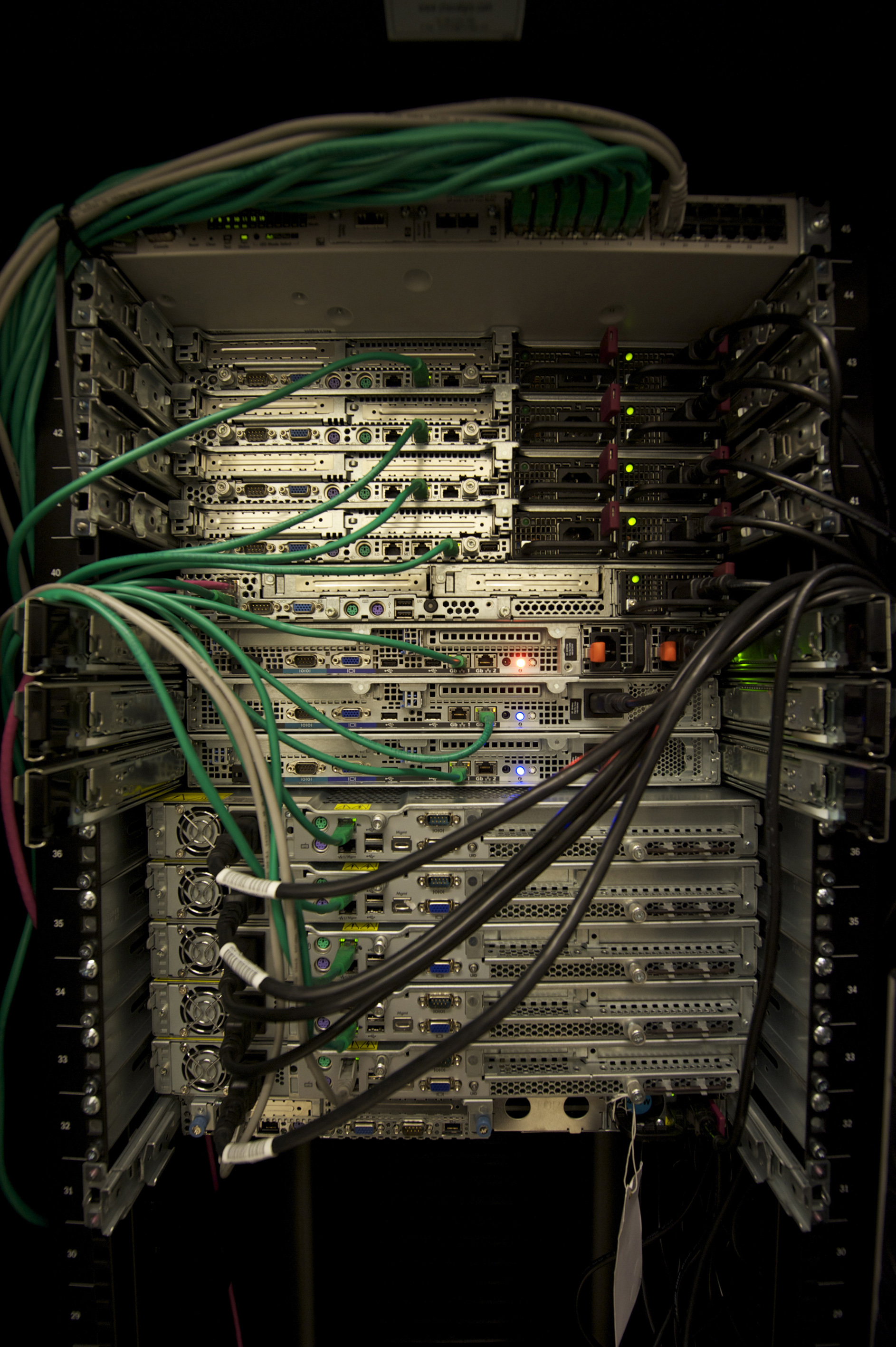
The Phone Book of the Internet
Every device on the Internet has a number address called an IP address. People remember names, computers need numbers, and DNS bridges the gap. When you type a domain name, your device asks a DNS server for the number that belongs to that name.
The lookup usually takes a few dozen milliseconds, which sounds tiny. But a single page may need lookups for the main site, for images, for fonts, and for ads. Ten lookups at 50 milliseconds each add half a second before anything loads.
Your Internet provider assigns a DNS server by default, and that server is not always the fastest. A public DNS service may answer faster from a server closer to you.
DNS also affects reliability. If your provider DNS server goes down, sites fail to load even though your connection is fine. A second DNS server, or a switch to a reliable public service, removes that single point of failure.
How a DNS Lookup Travels
A lookup starts in your device, which first checks its own cache of recent answers. This cache is why a site you visit often feels faster on the second visit.
If the cache has no answer, the request goes to the DNS server set on your device or router. That server may hold the answer in its own cache, or it may ask other servers up the chain until it finds the owner of the domain. Each hop adds time.
The final answer comes from the authoritative server for that domain, which holds the true record. The answer then travels back down the chain and gets cached at each step, so the next lookup for the same name is faster.
Cache lifetime is set by the domain owner through a value called TTL. A short TTL means fresher answers but more lookups. A long TTL means fewer lookups but slower updates when a site moves to a new address.
Why a Faster DNS Server Helps
A faster DNS server cuts the wait before each page starts to load.
The gain also depends on your connection. On a slow connection, the DNS wait is a small part of the total load time. On a fast connection, DNS can be the main delay, so switching servers shows a bigger improvement.
Some DNS services also block known malicious domains. When your device asks for a harmful site, the DNS server refuses to answer, which stops the connection before it starts. This is a useful extra layer, but it does not replace antivirus software.
A DNS change cannot speed up the site itself. DNS only removes the lookup delay, which is one part of the total wait.
How to Change Your DNS Server
The easiest place to change DNS is on your router. A router change covers every device in the home at once, including phones, tablets, and smart TVs. Log into the router settings, find the DNS fields, and enter the new server addresses.
You can also change DNS on one device. On a computer, the setting lives in the network adapter properties. On a phone, it lives in the Wi-Fi network details. A device change is safer for testing, because only that device is affected.
Enter two server addresses: a primary and a secondary. The secondary takes over if the primary fails, so never leave it blank. Write down your old DNS addresses before you change them, so you can go back if anything breaks.
After the change, clear the DNS cache on the device or restart it. Then test a few sites you visit often and compare how fast they start loading. If a site stops working, switch back to the old addresses and check for a typo.
Privacy and Safety Notes
Your DNS server sees every domain you look up, which is a privacy matter. A provider DNS server may log those lookups, and a public DNS service may log them too. Read the privacy policy of any DNS service before you trust it with your browsing history.
Encrypted DNS hides the lookup from others on the network. Modern browsers and operating systems support DNS over HTTPS or DNS over TLS, which wrap the lookup in encryption. Turning this on stops a local snoop from reading your lookups.
Do not trust a random DNS server from a forum post. A malicious DNS server can send you to fake sites that steal passwords. Use a well-known public DNS service with a published privacy policy, and never enter addresses from an unknown source.
Test after every change. If pages feel slower or a service stops working, the old server may have been better for your location, and switching back is the right call.